
1 - Create a customer field.
Select the "Drop down box > single select" option and name it something appropriate such export in our example below. Also, make sure you select the "can filter on this field" option:
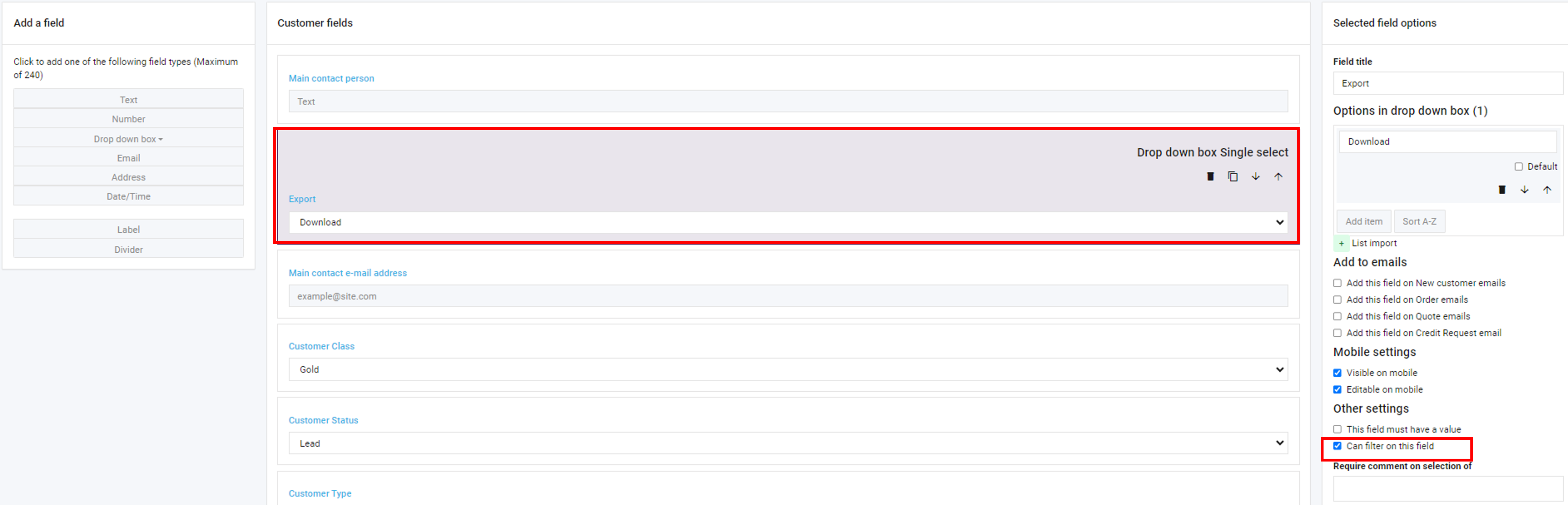
Under the field you just created, add an option and name it "download". You may delete all additional fields:
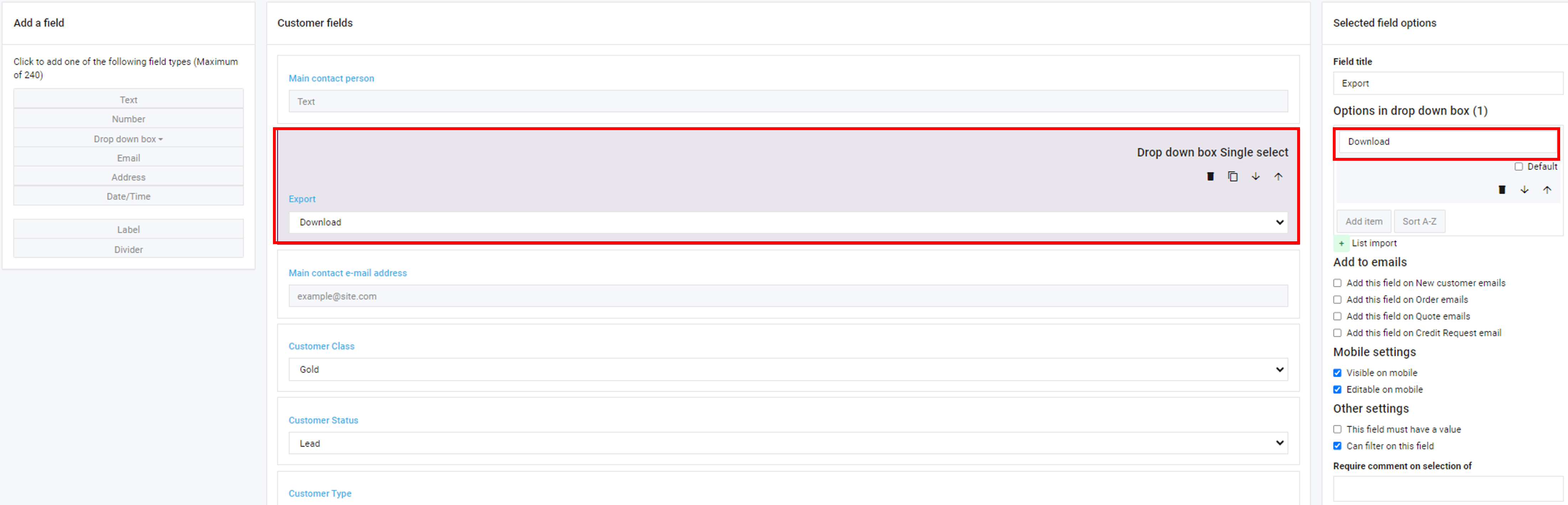
For help on how to add the customer field - click here.
2 - Apply the created customer field to the customer
Navigate to your customers tab > select a customer > click on the "overview" tab:
Scroll down and find the customer field you just created. Apply the "download" option we created for it:
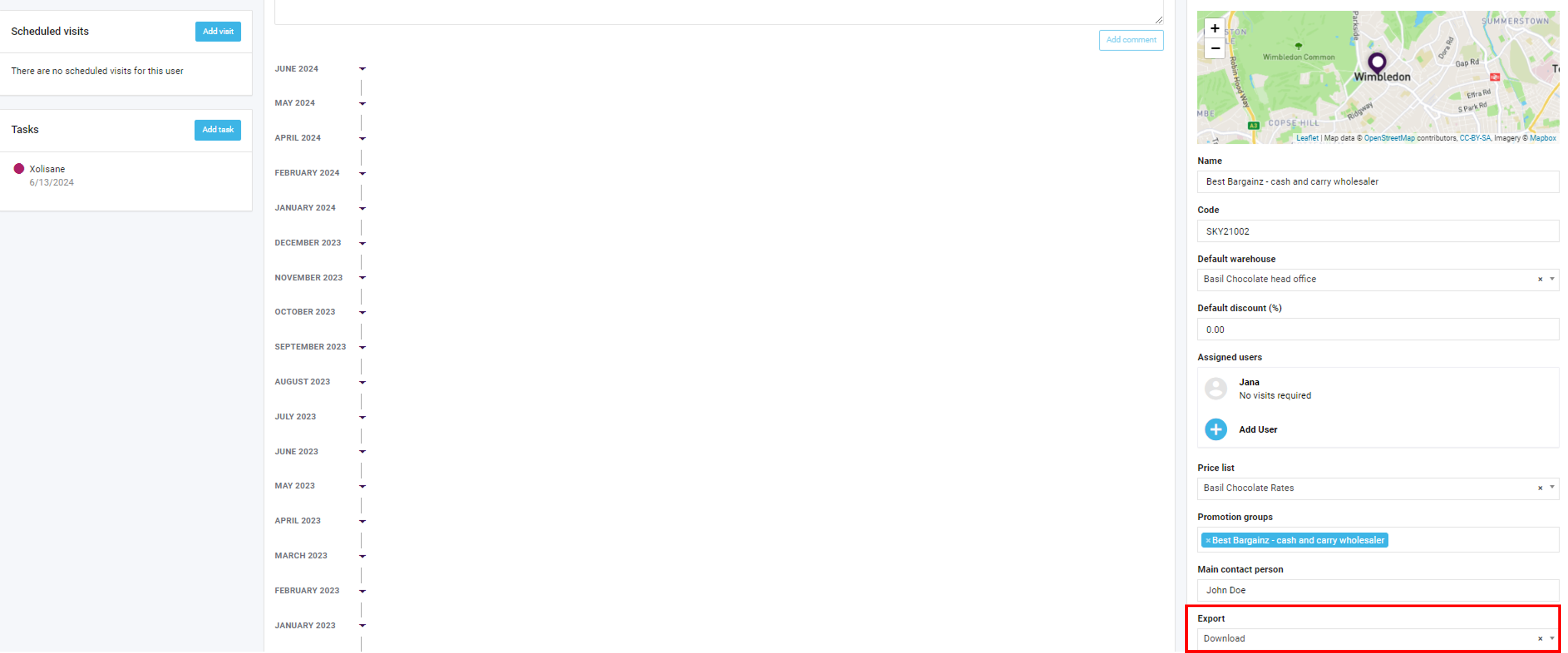
Click save once Skynamo prompts you to.
3 - View and download the information from your call report.
Navigate to Skynamo > reports > call report and apply the "download" option to the customer field we created:
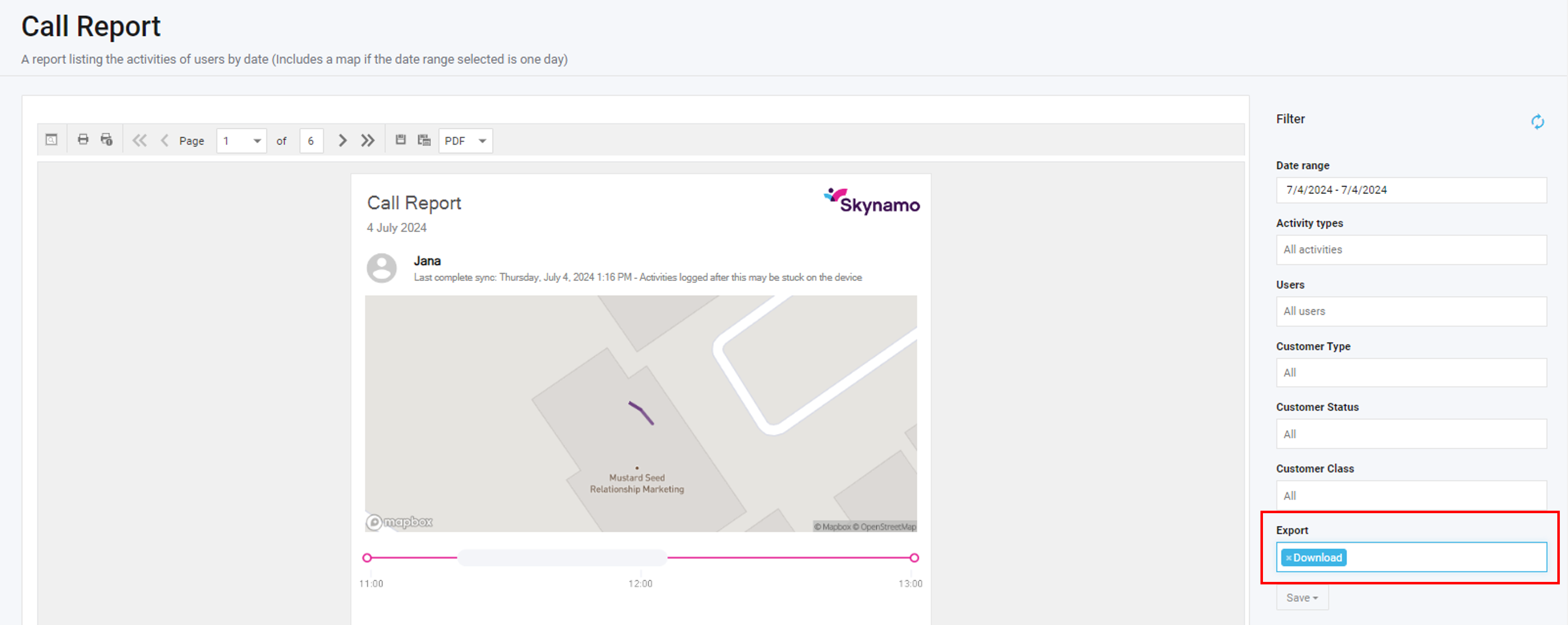
The applied filter will limit the reports results to only the customer we applied the field/filter on. You may now download and share the data.
Important:
Once you have downloaded the customer data, remove the field from the customer. This important so that you can use the field again to download information for a different customer. If the field is applied to two different customers, the call report will give you information for both of them.
If you are experiencing any issues, please contact our support team by mailing us at support@skynamo.com.