It may be that you have previously deactivated a customer, but would like to reactivate the customer for some reason. This process can be done if a customer has been either deactivated or deleted from your customer database. Keep in mind we remove visibility of the customer but we do not delete the data. Below we will show you how to reactivate the customer and restore the details.
Note, this can only be done on Skynamo Insights (i.e. Web portal).
Navigating to the deactivated customers
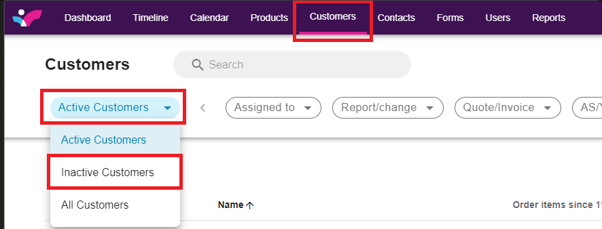
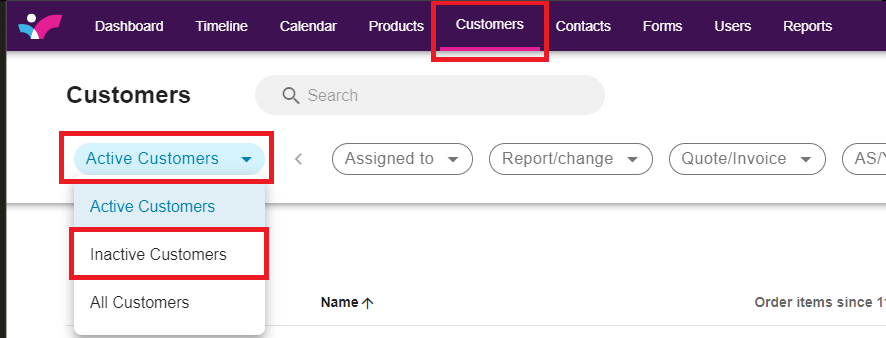
Navigate to your Customers tab. By default, when you click on your Customers tab in the menu bar, you will see your active customers. To reactivate an inactive customer, you first need to apply the filter so that all your inactive customers are shown.
Activating the customer
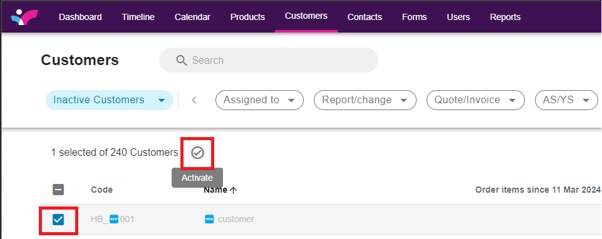
Select the tick block to the left of the customer name. Then proceed to activate the customer by clicking on the activate button at the top.
To activate customers in bulk:
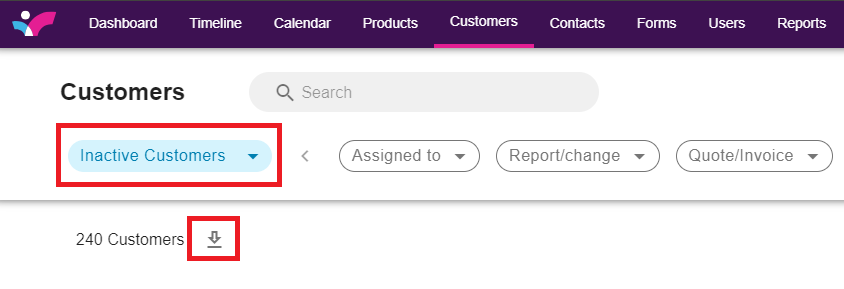
Still on Inactive customers, download the customer base.
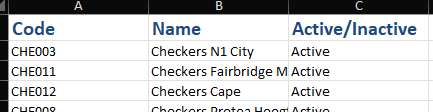
Delete all other columns except for the Code, Name and Active/Inactive columns
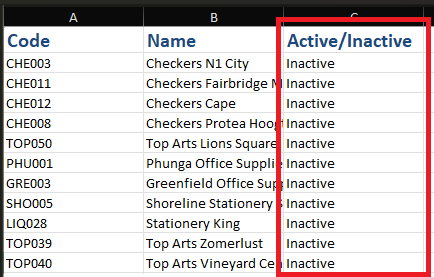
Navigate to the Active/Inactive column and change the status from Inactive to Active for the customers you want to reactivate:
- Save the file
Then, import the customers as active:
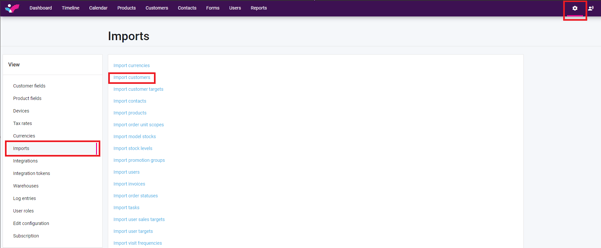
- Go to Settings > Imports and select Import customers:
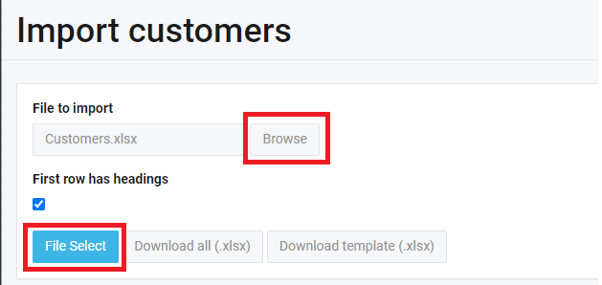
- Click on Browse and select the file in your computer and select File select to import:
- Click Import Customers at the bottom of your screen
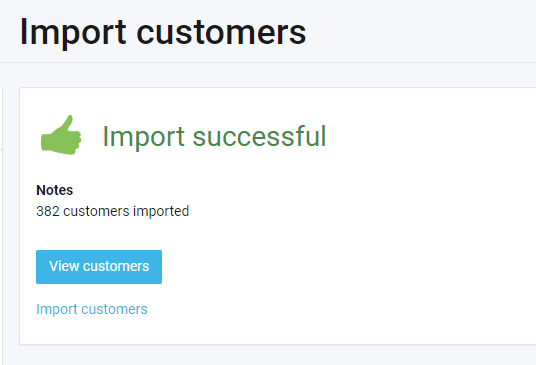
Once the file has successfully imported, your customer base will be updated: