Contacts can be added from the contacts page or from the customers page.
To add a contact on the Contacts page:
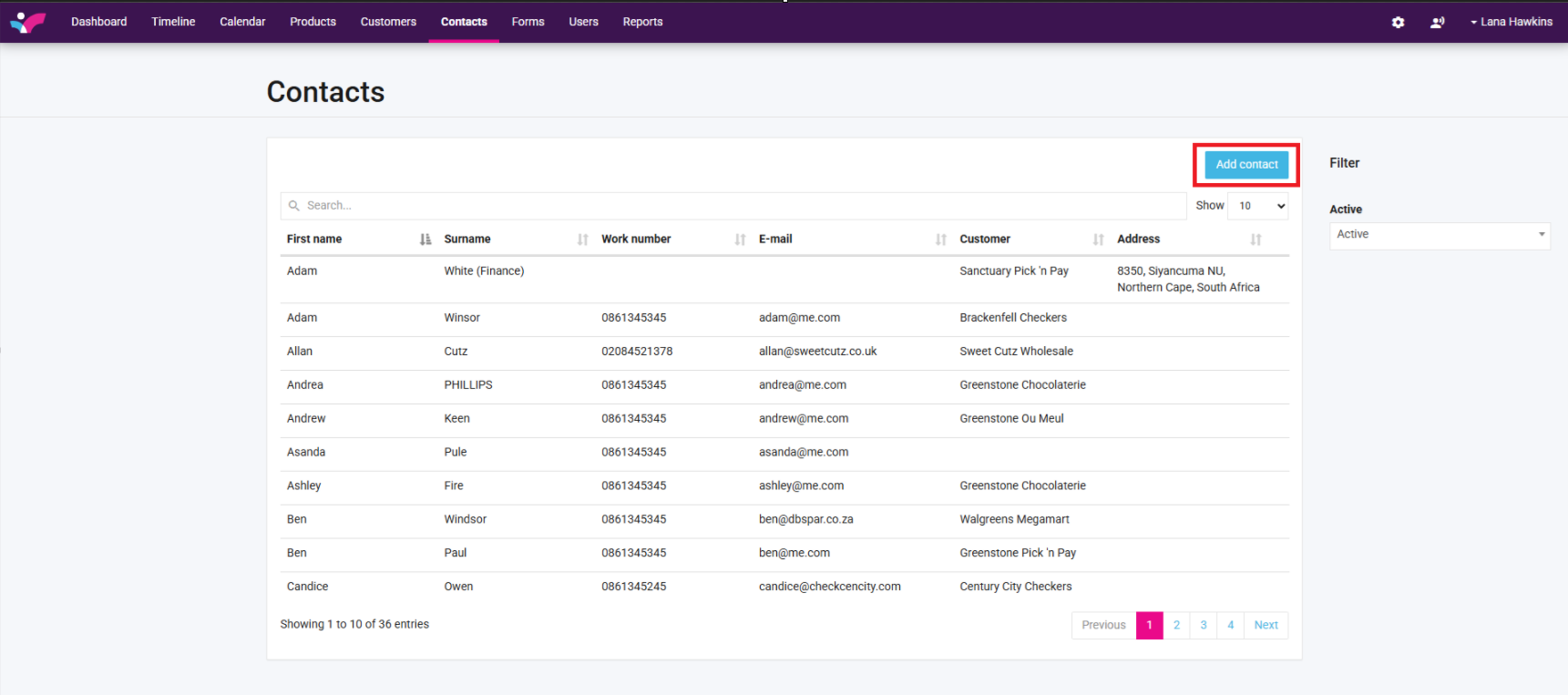
1. On the Skynamo web interface, navigate to the Contacts tab:

2. Click on Add contact:
3. Fill in the necessary details (the First name and Customer fields are required):
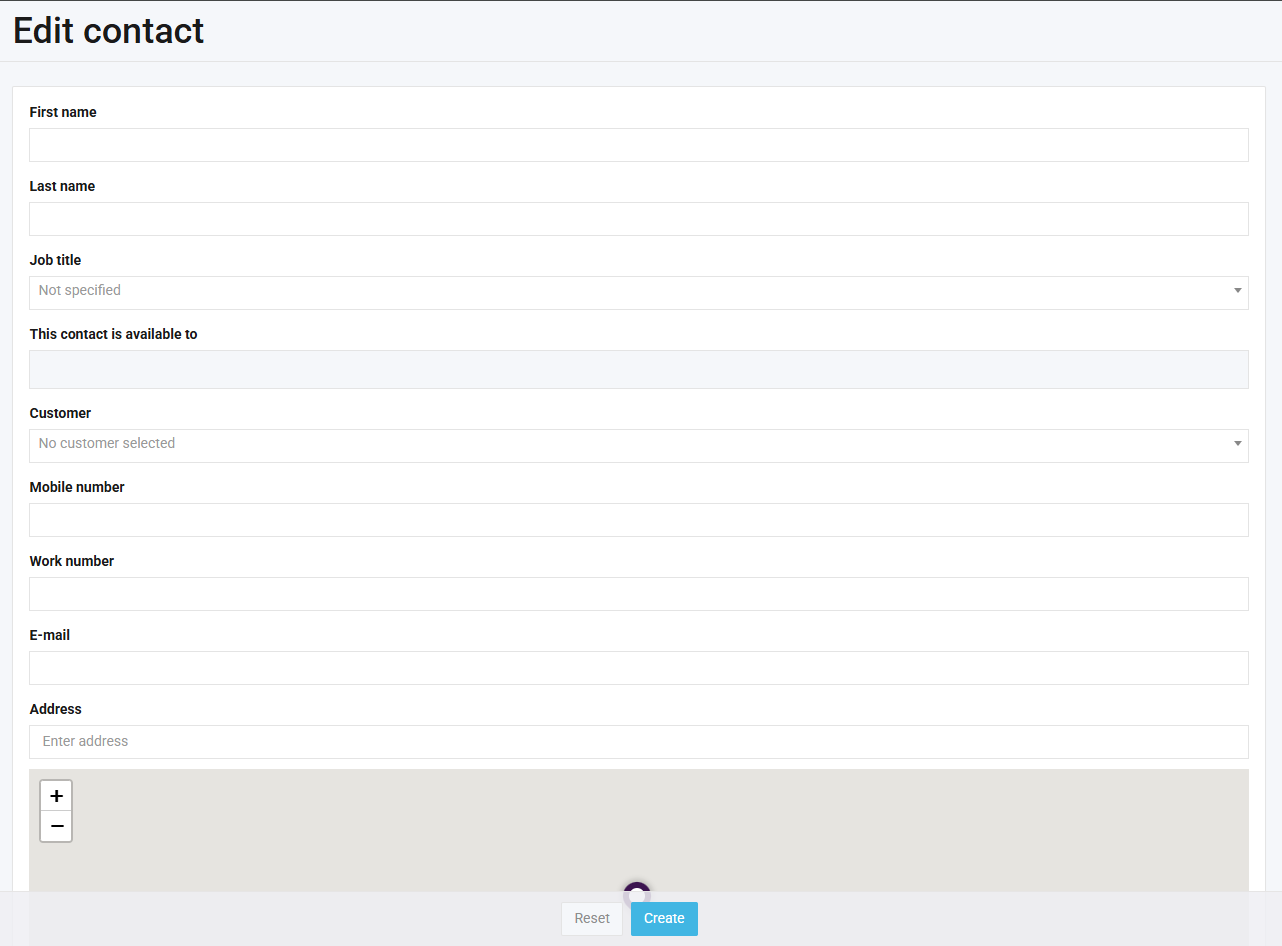
If you choose to enter the Address, the map will update automatically with the pin location.
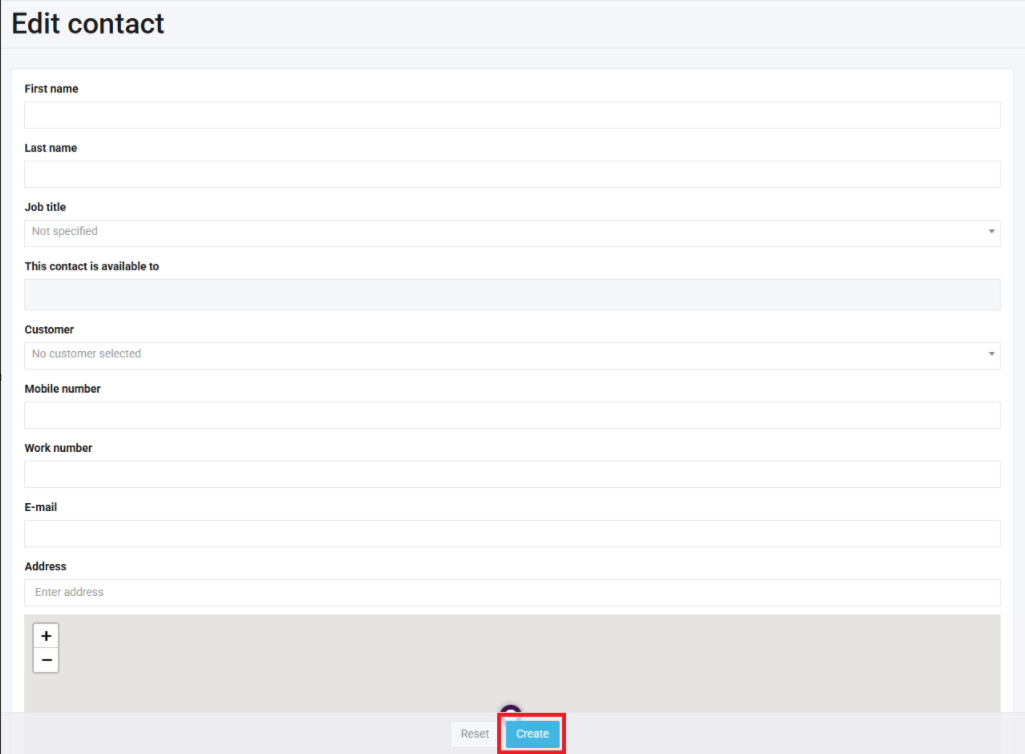
5. Click Create at the bottom of your screen:
To add a Contact under the Customers page:
1. On the Skynamo web interface, navigate to the Customers tab:

2. Search for and open the customer that the contact is linked to
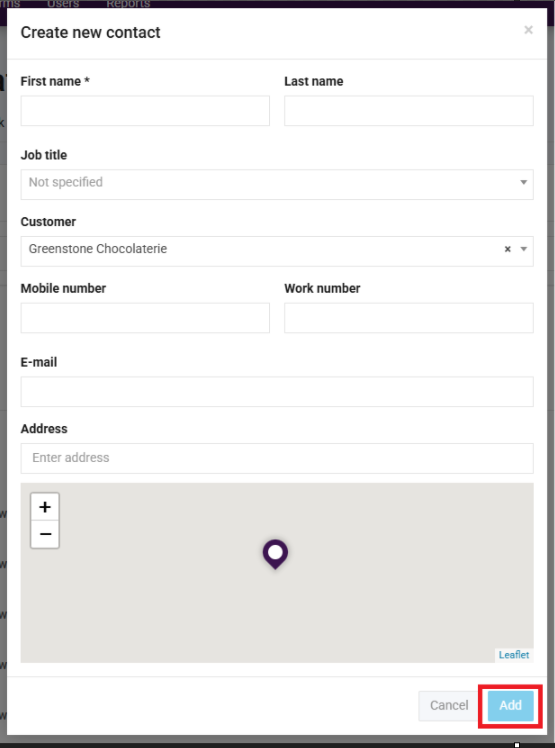
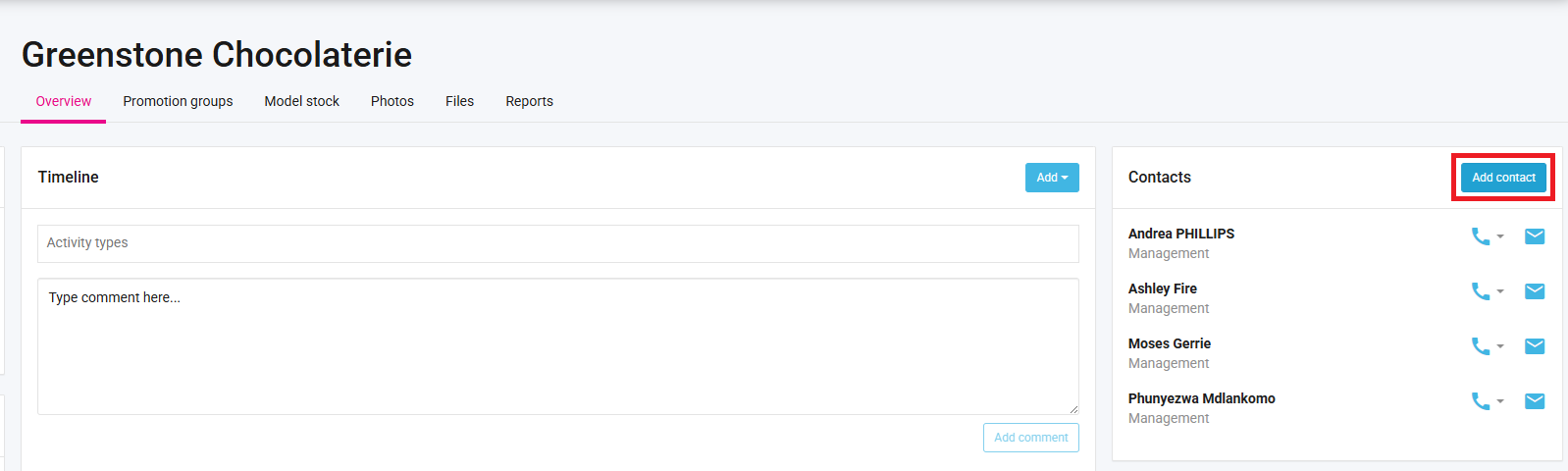
3. On the customer, at the top-right corner of the screen, click on Add contact:
4. Fill in the necessary details:
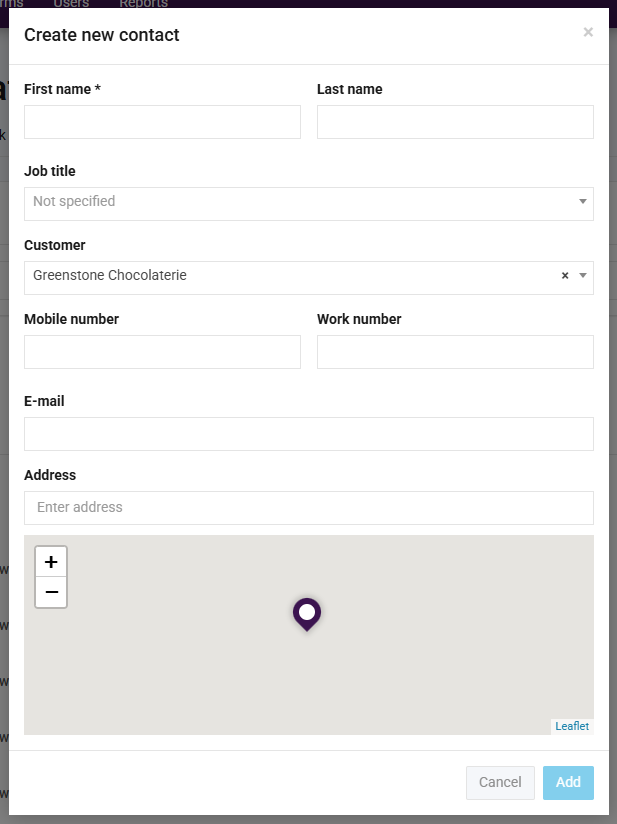
If you choose to enter the Address, the map will update automatically with the pin location.
5. Click on Add at the bottom-right corner: