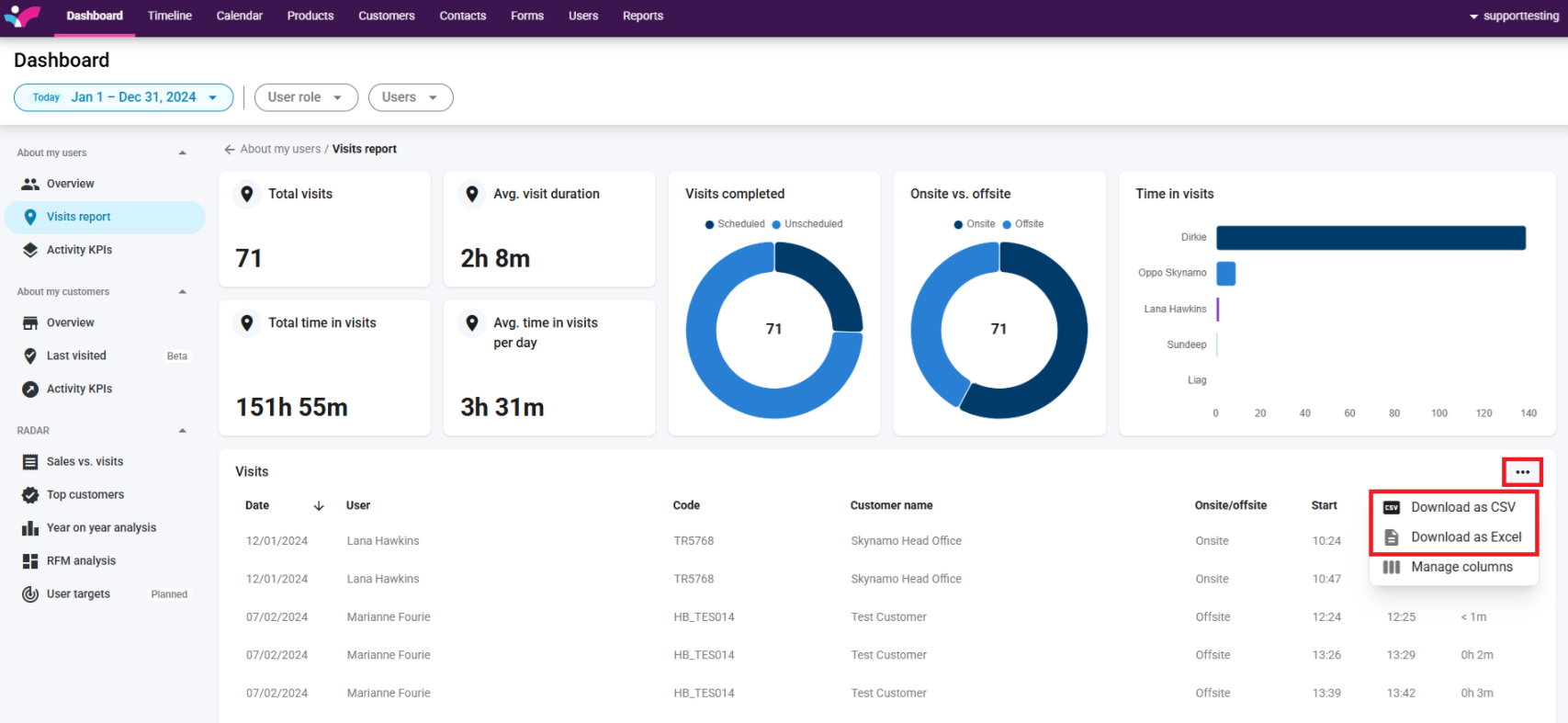
1. On the Skynamo web interface, navigate to the Dashboard tab:

2. Select the required date range and apply any necessary filters:
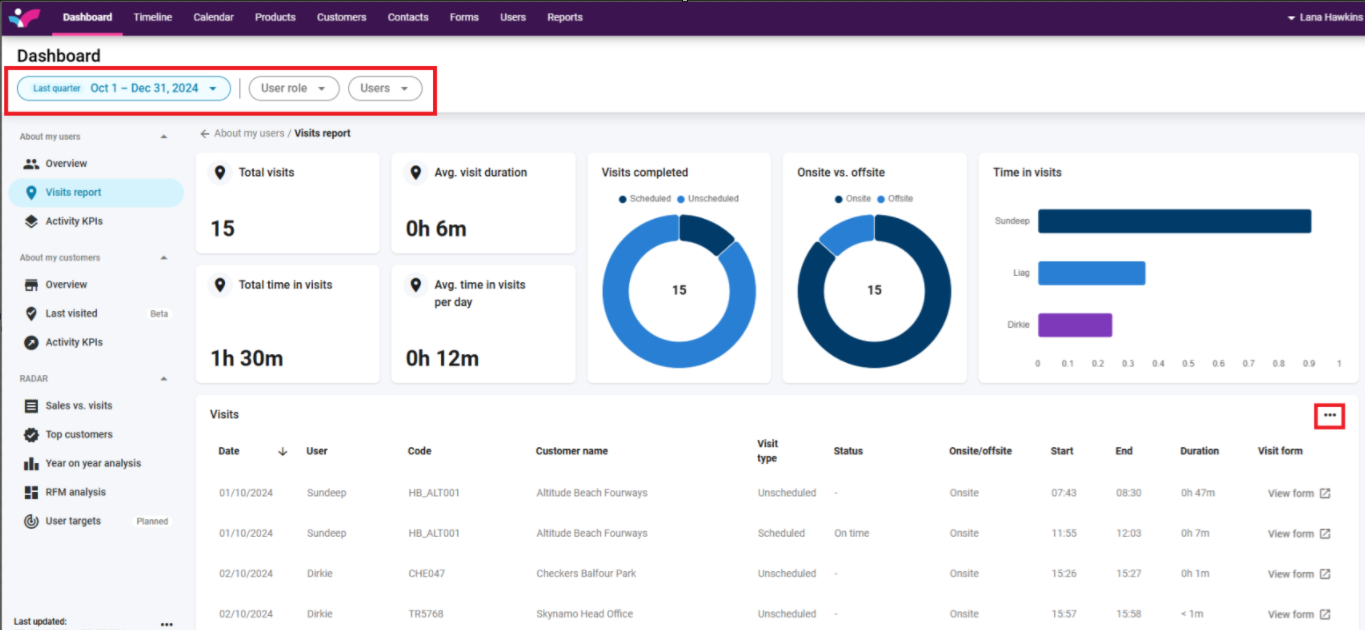
3. In the left-hand menu, select your chosen report
4. Click on the three dots at the top-right corner of the report:
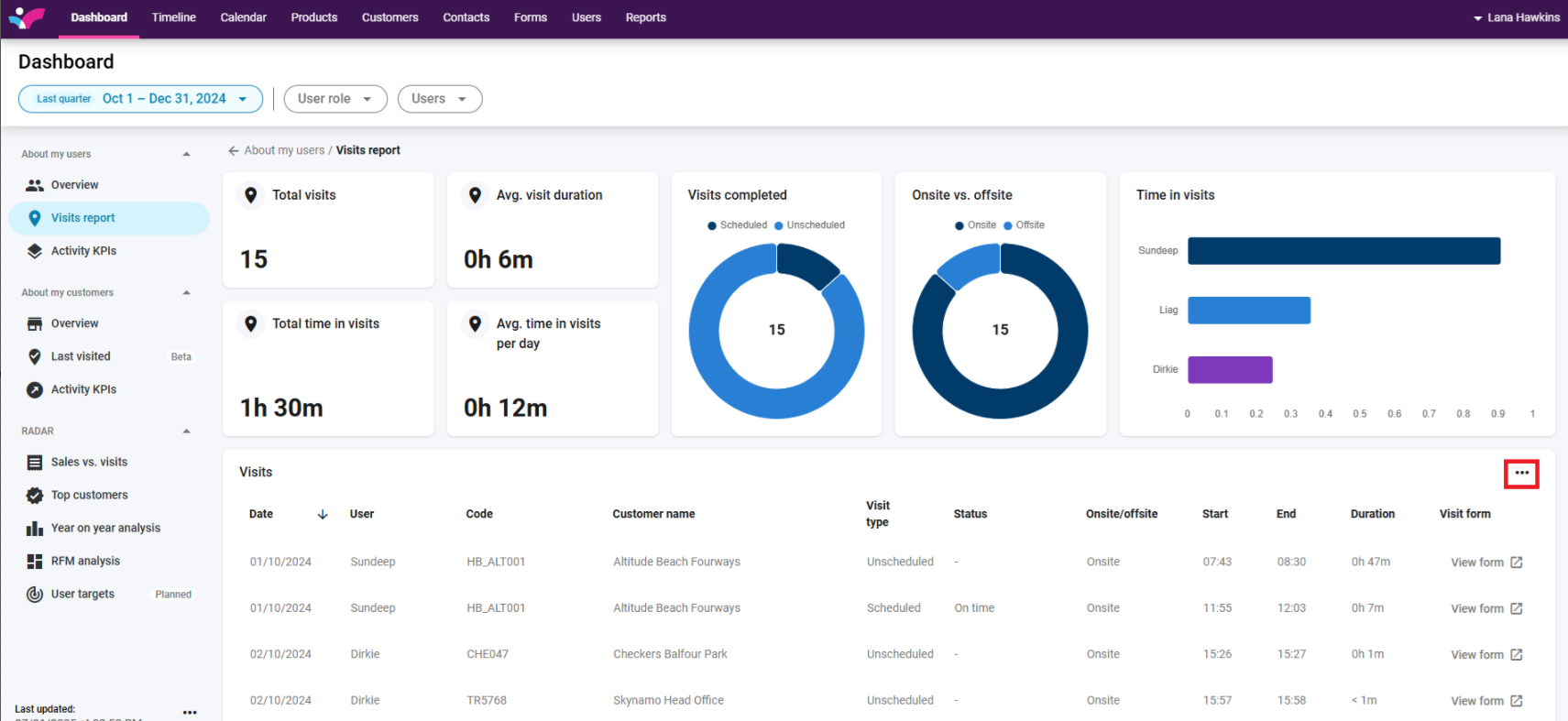
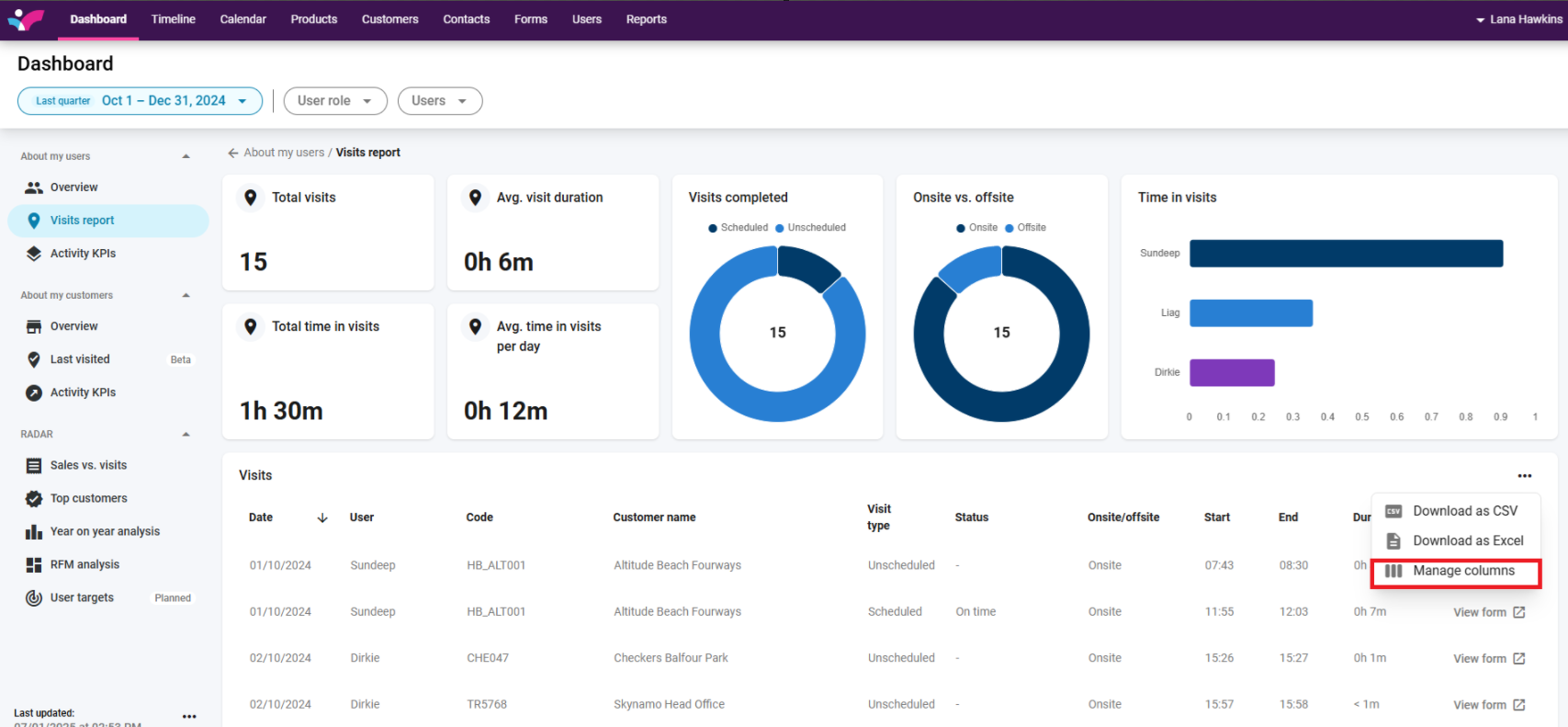
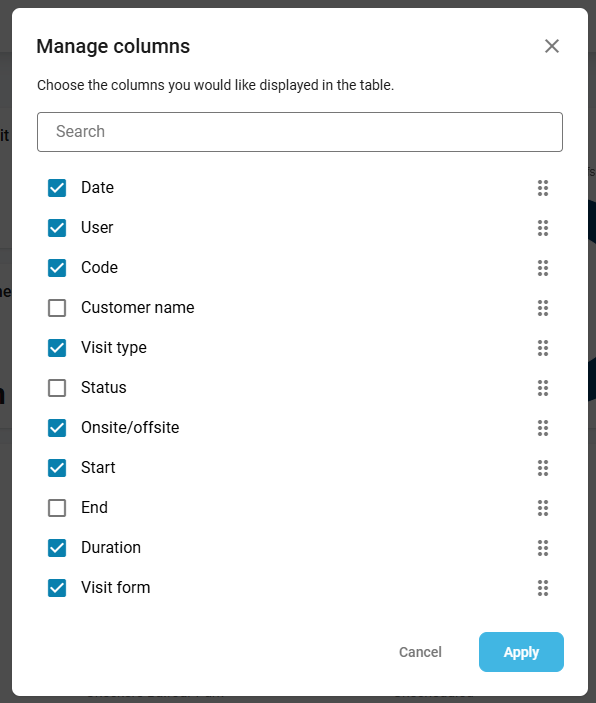
5. Select Manage columns to choose which columns are displayed in the table and the order in which they appear. Click the blue Apply button:
5. To download the report as Excel or CSV to your device, click on the 3 dots and then select your option. The file will be downloaded to your Downloads folder: