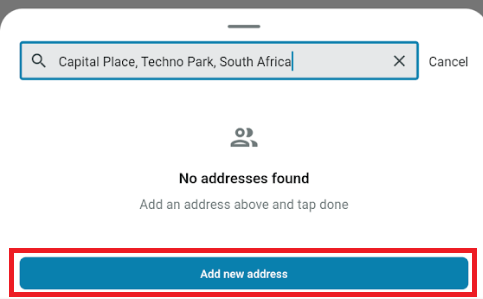
Create your addresses as contacts:
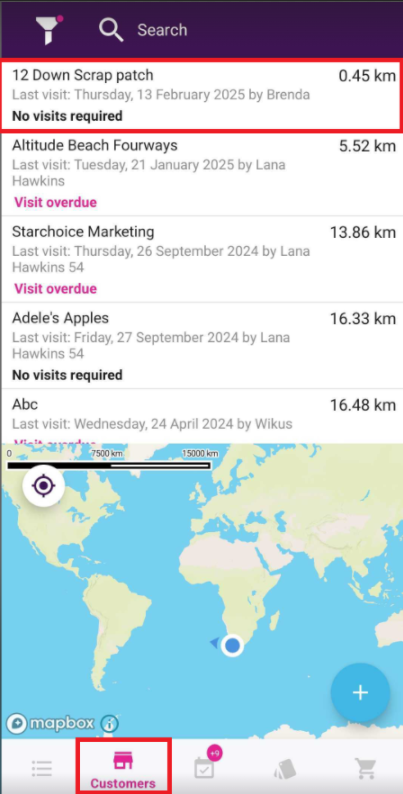
1. On your Skynamo app, navigate to your Customers tab and open the relevant customer:
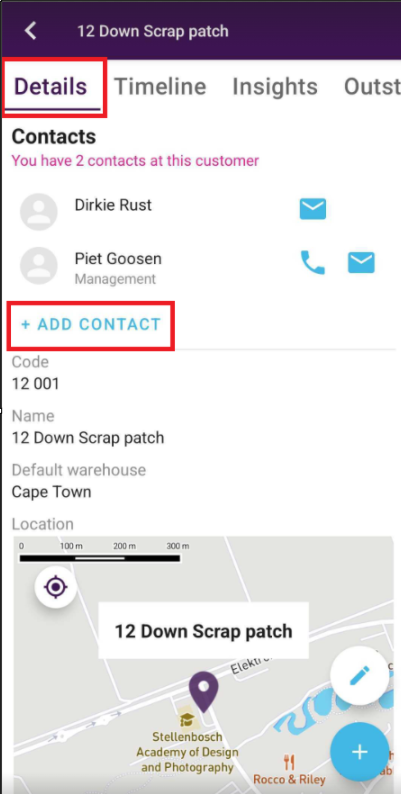
2. On the Customer's Details page, click on Add contact:
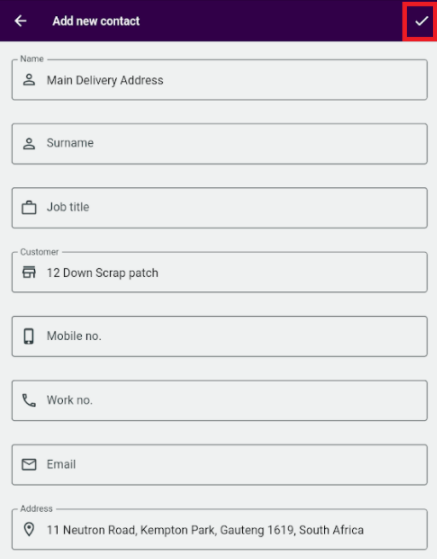
3. Name the address at the top:
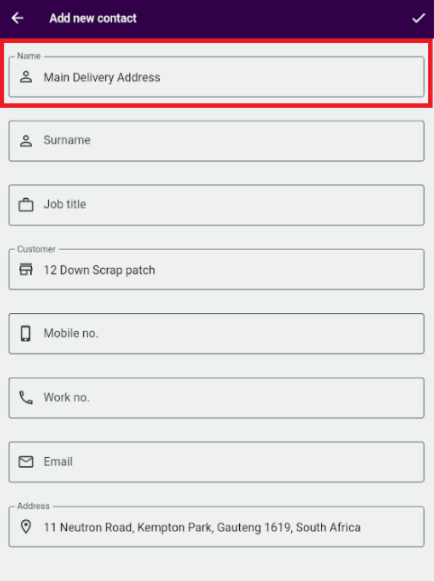
4. In the Address field at the bottom, you can type the address out or you can tap a location on the map and it will add the address for you:
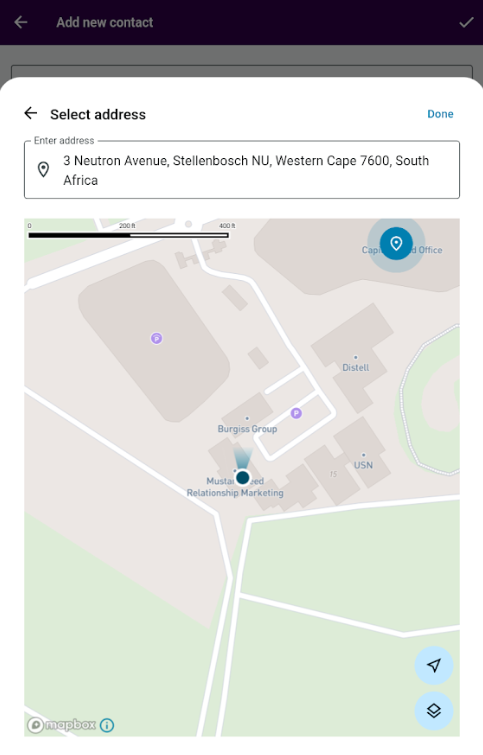
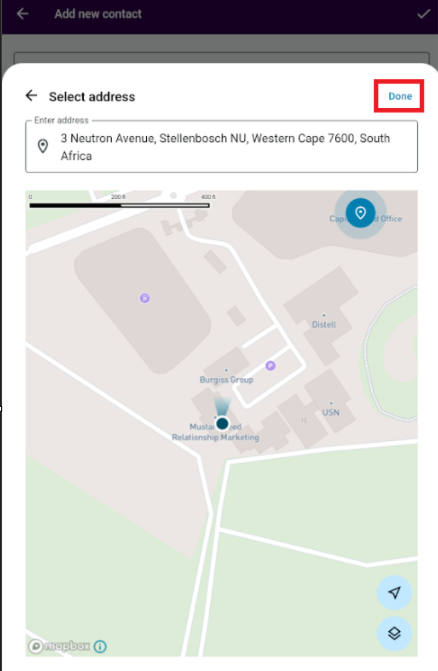
5. Click Done to save the address:
6. Click the tick icon in the top-right corner to save the contact:
Selecting the address on a form:
1. When filling out a form, such as an order or a quote, click inside the Address field:
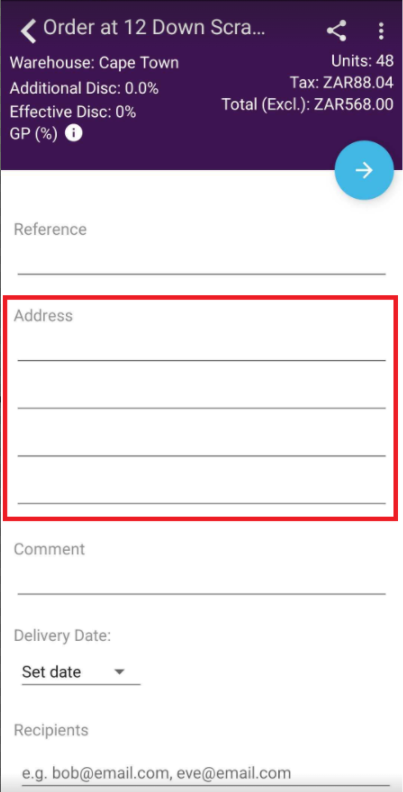
2. You can then select your address from the list:
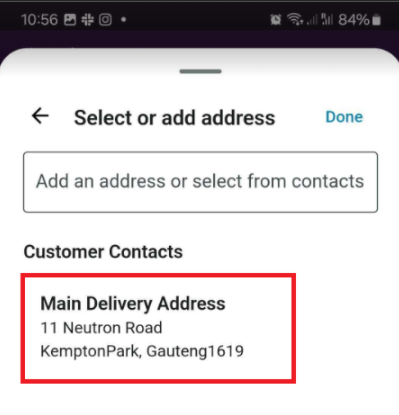
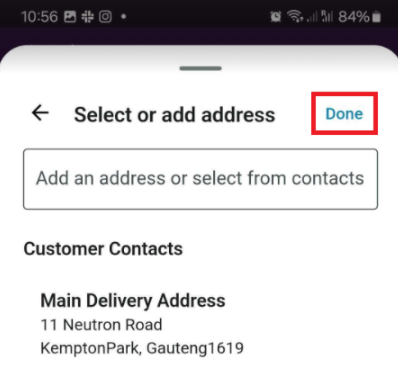
3. Click Done to add the address:
If the address is not saved as a contact, you can still just type the address out as normal:
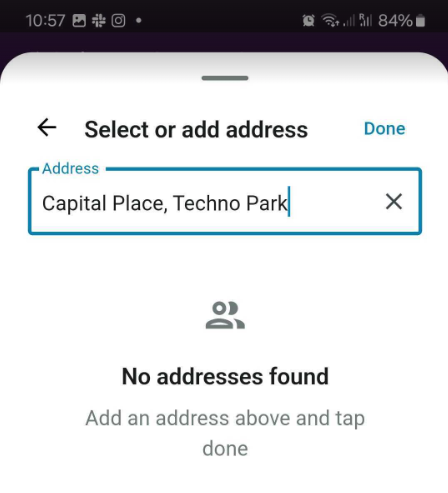
Then choose to add it as a new address: