
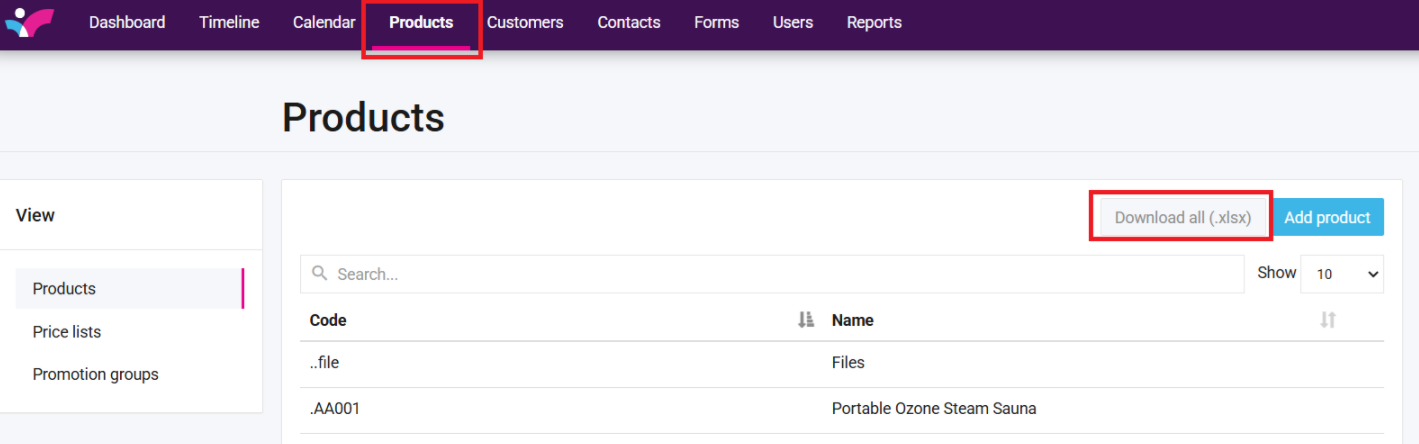
- Open the Excel file that has downloaded and click on Enable Editing at the top
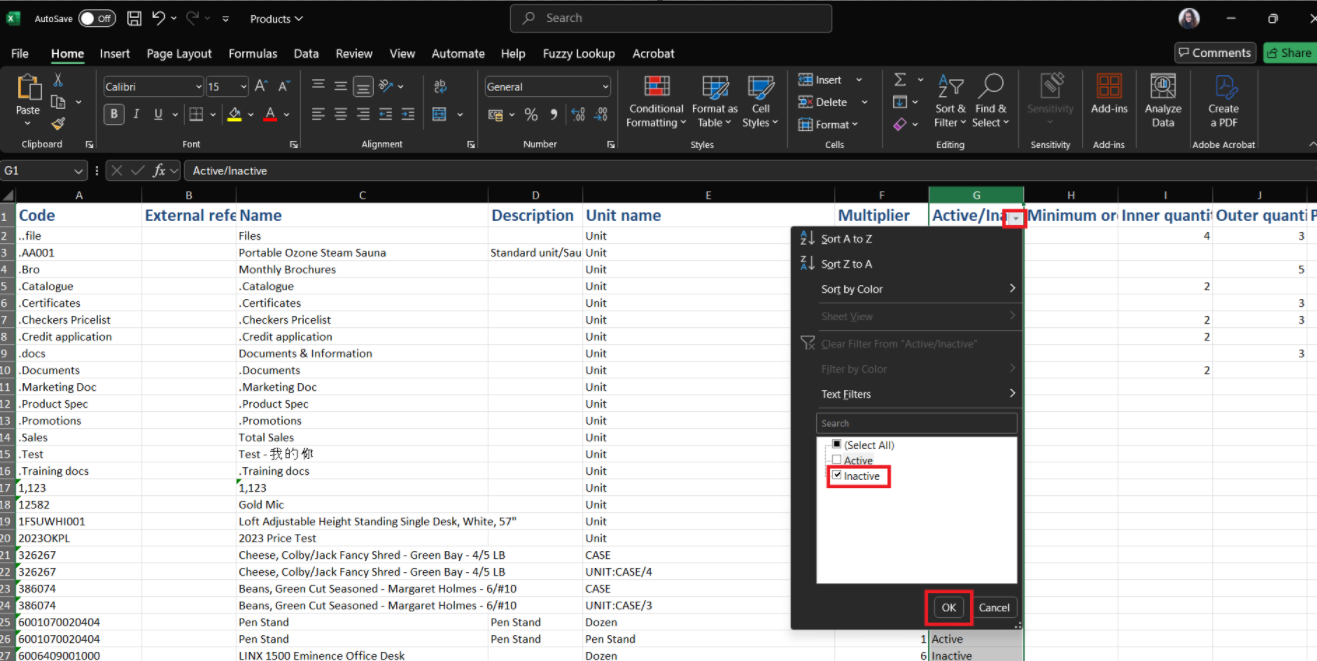
- In the Active/Inactive column, filter by Inactive Products and delete these from the list so that you are only working with Active Products
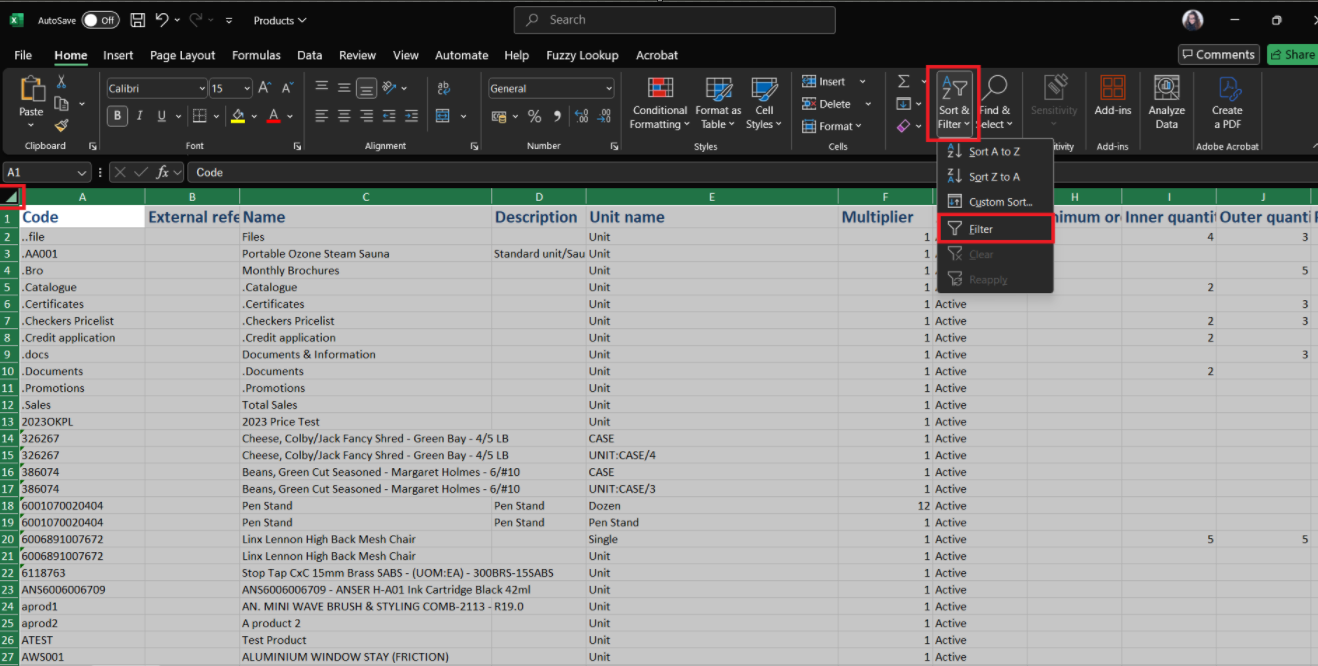
Use the Ctrl + Shift + L shortcut to apply filters to your file or select your whole file and click on Sort & Filter -> Filter:
In the Active/ Inactive column, select the filter drop down icon, make sure only Inactive is selected and click OK:
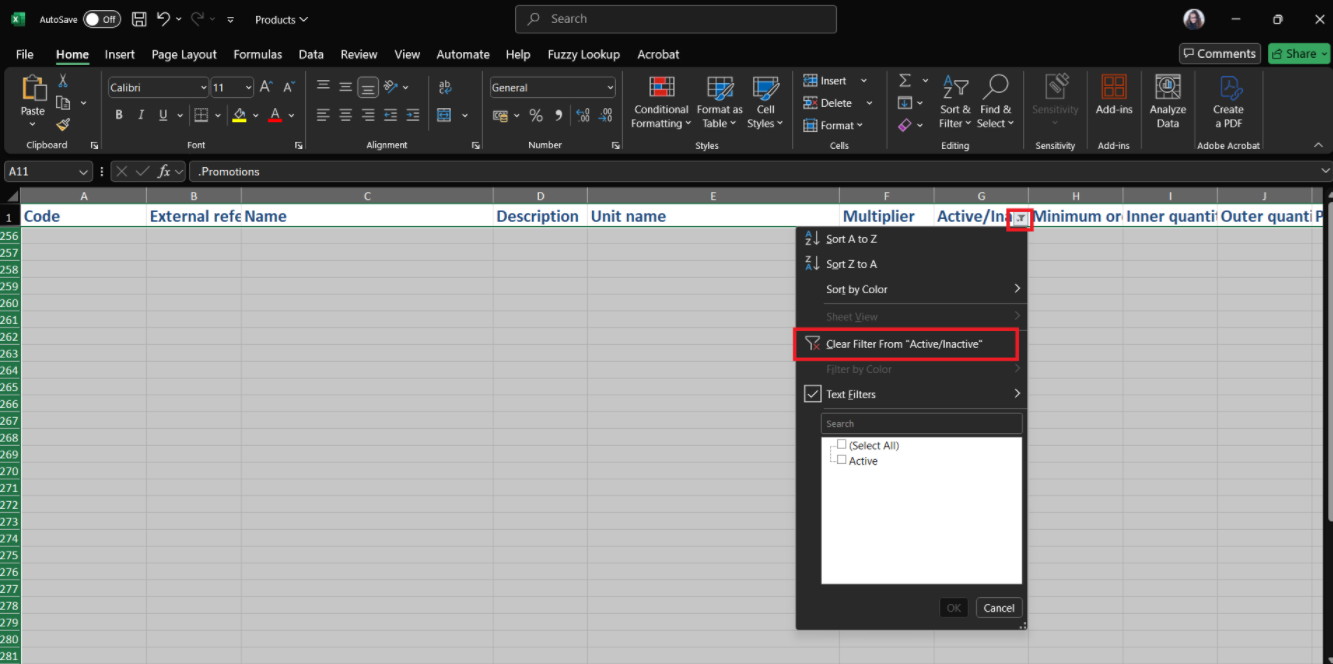
This will give you a list of all of the Inactive products, which you can now delete. Please ensure that you do not delete the Headings (Row 1)
Clear the filters applied:
The Number of files column (Column L), will now tell you which products have files/images uploaded and how many. You can, therefore, either:
- Filter by 0 to find products that do not have files/images uploaded
- Filter by everything except 0 to find products that do have files/images uploaded
- Sort from Smallest to largest or vice versa to see both