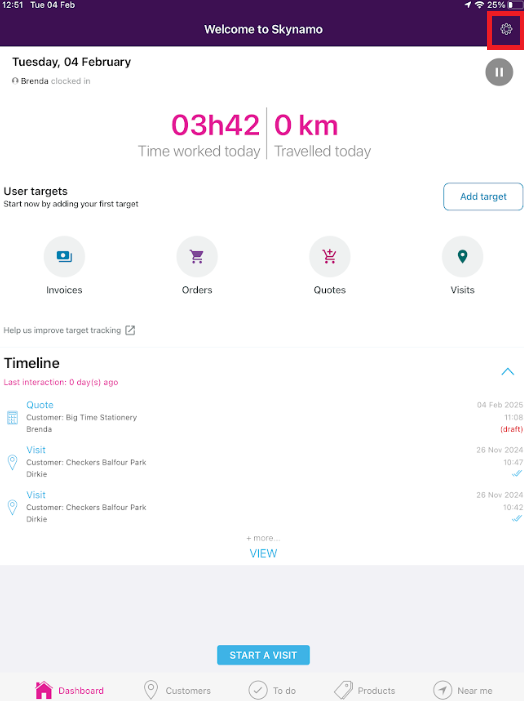
1. Open your Skynamo app and click on the Settings icon at the top-right corner of your screen:
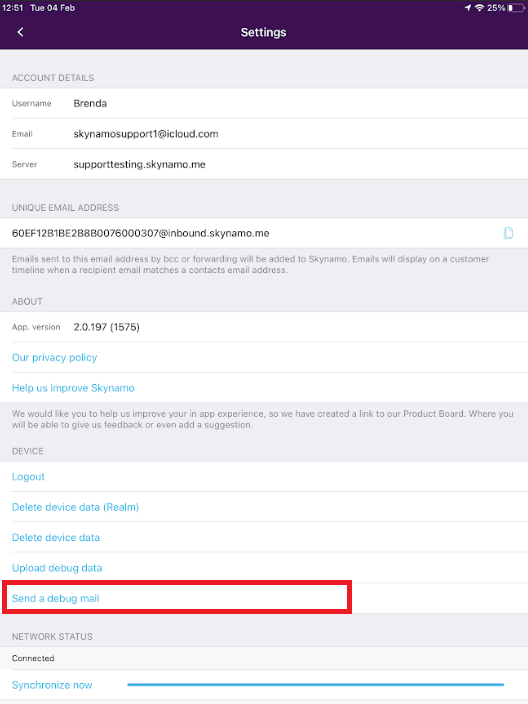
2. Click on Send debug mail:
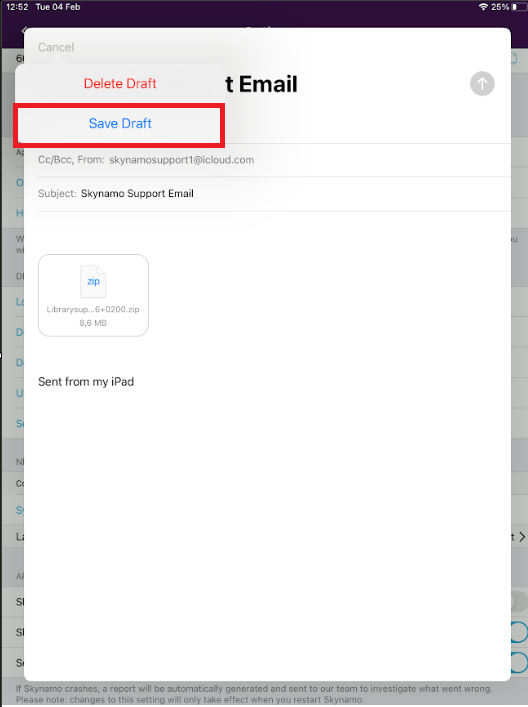
3. Once the email screen is open, swipe down from the top of the email bar and you will be given the option to “Save Draft” – select this option:
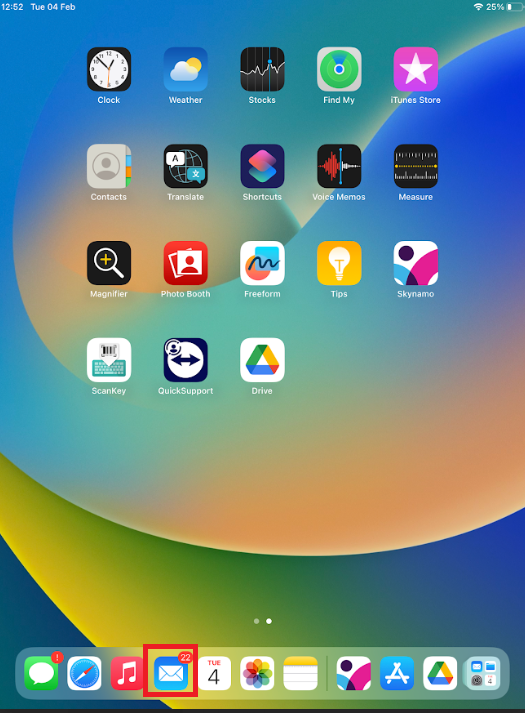
4. Exit Skynamo and open your Mail app:
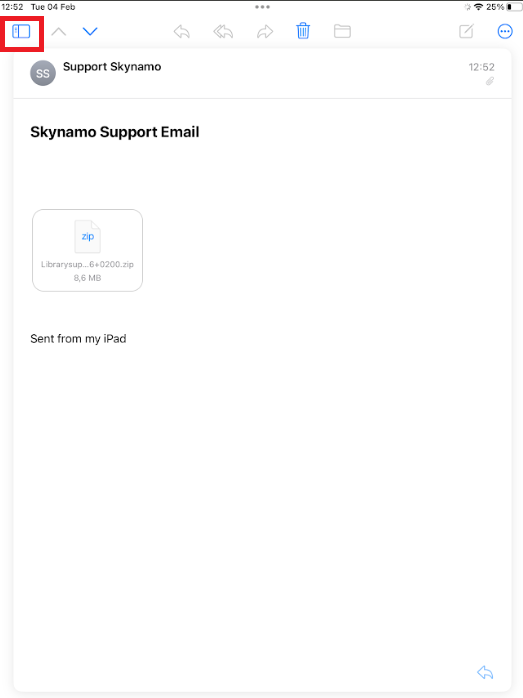
5. Click on the icon in the top-left corner:
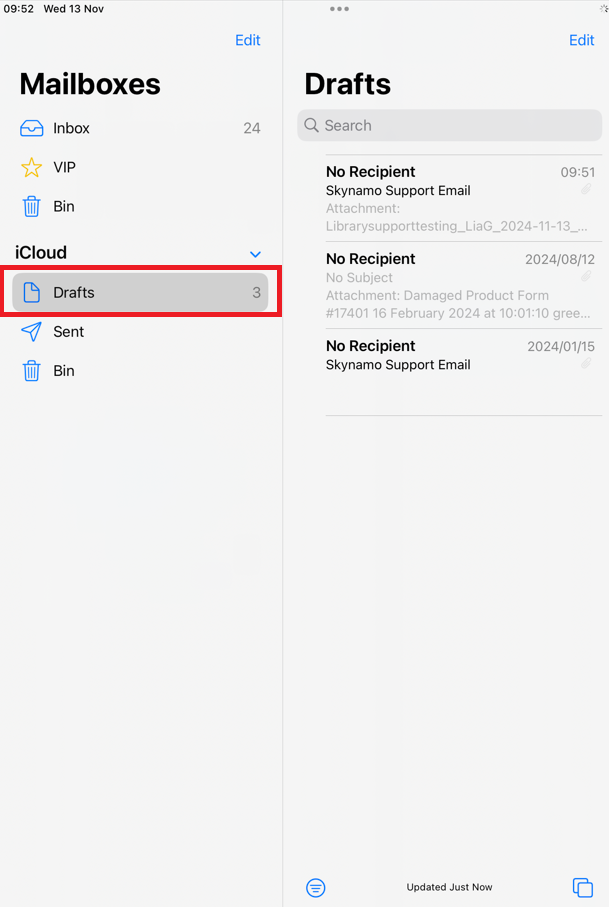
6. Click to open your Drafts folder:
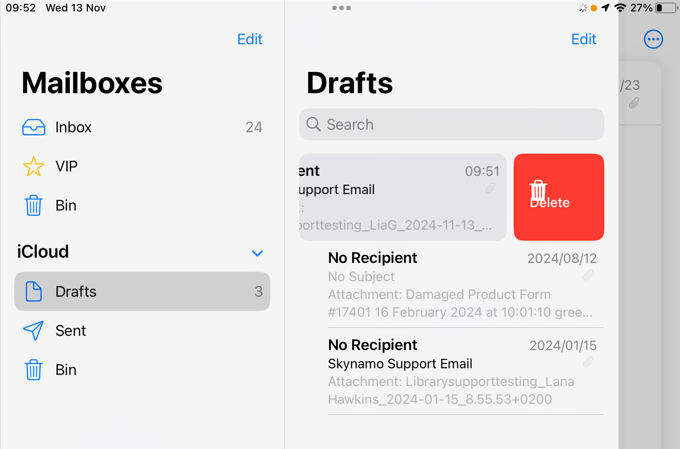
7. Find the debug email in your drafts folder and swipe the message to the left to send it to the email “Bin”:
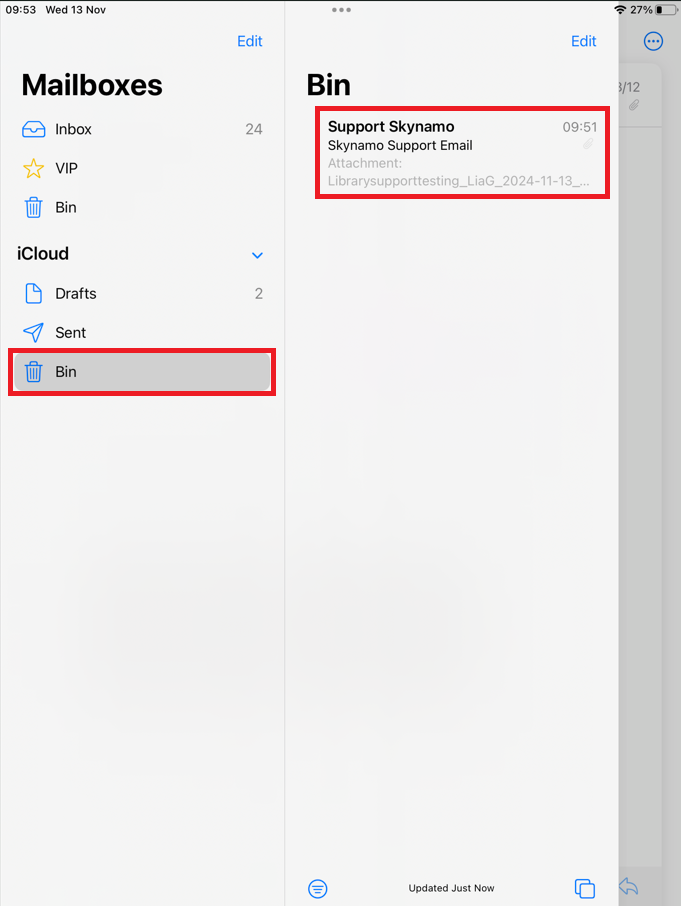
8. Next, navigate to the email “Bin” and open the debug email:
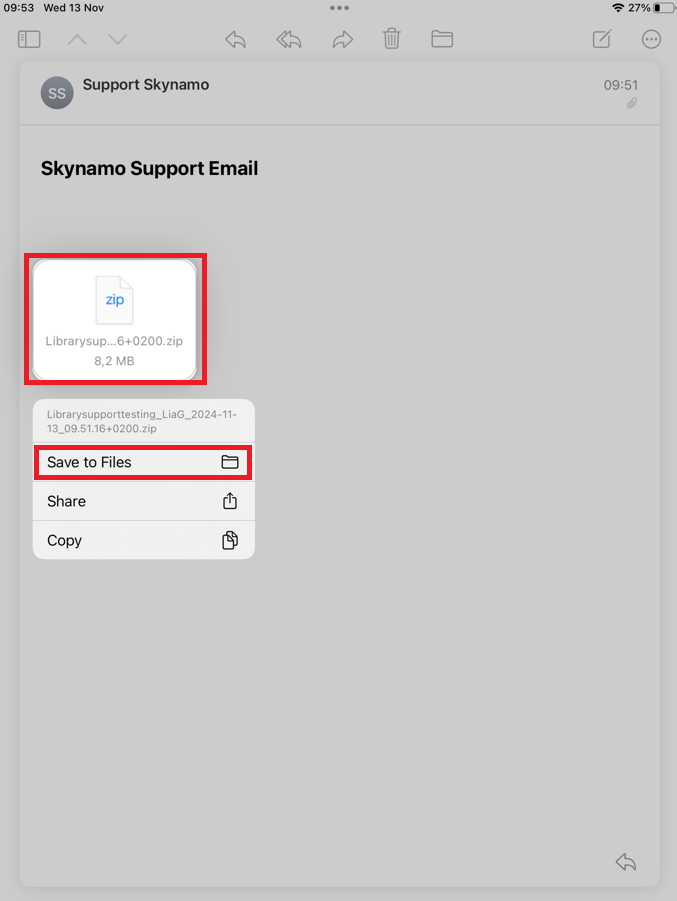
9. You can now tap and hold the file. Tap the “Save to files” option:
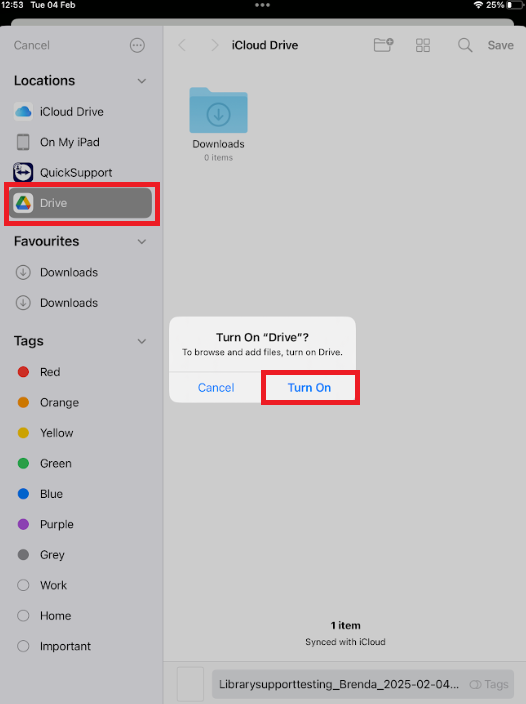
10. Click on Drive and select Turn on:
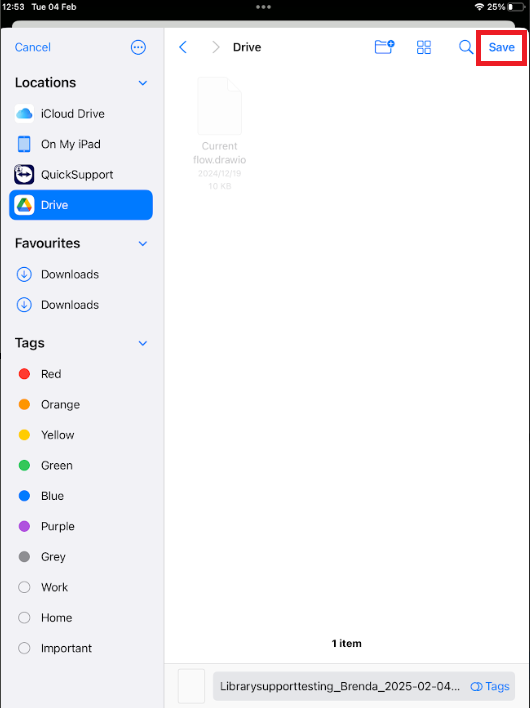
11. Then, click Save:
12. Exit the page and open Google Drive:
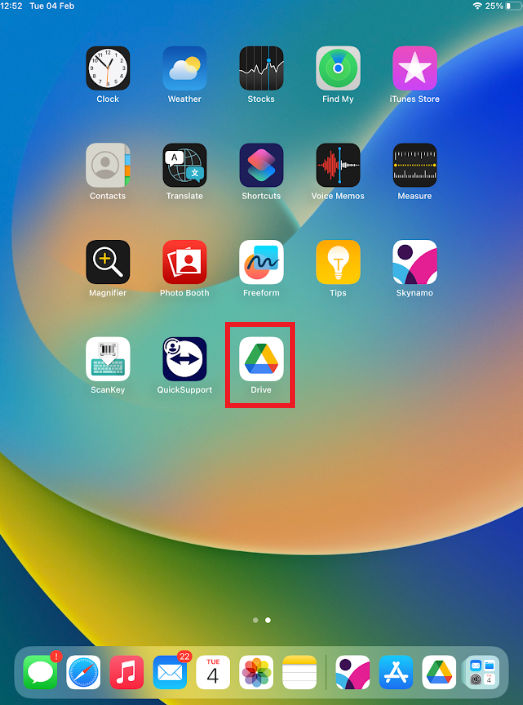
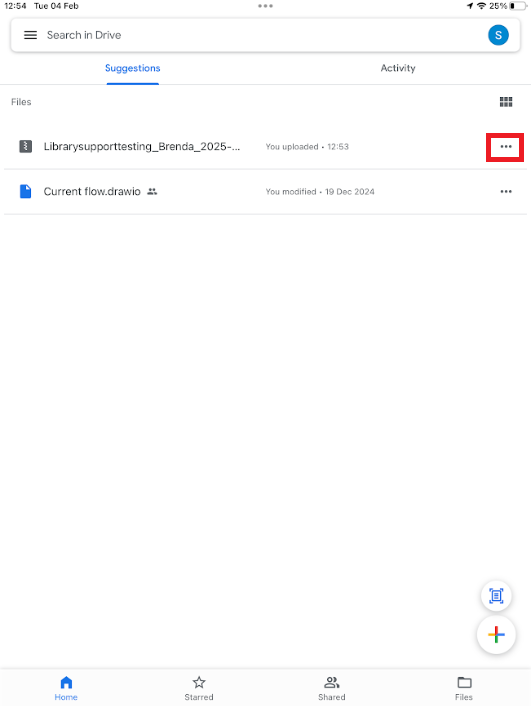
13. Locate the debug you saves and click the 3 dots next to it:
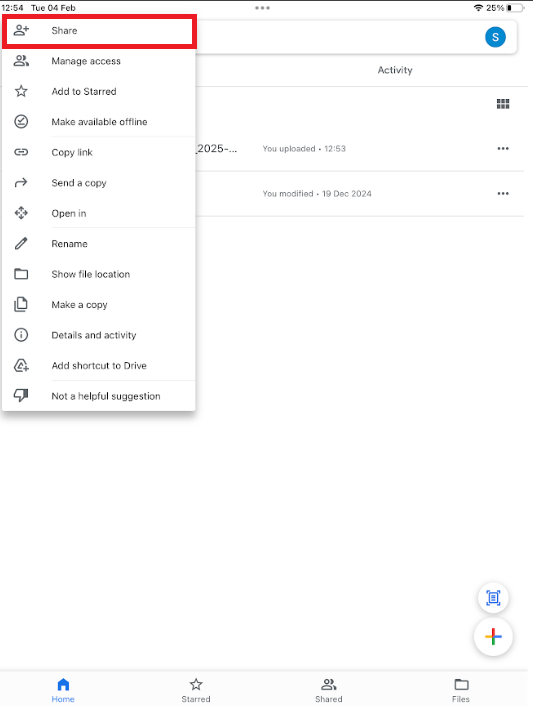
14. Click on Share:
15. Click on Manage access at the bottom-left:
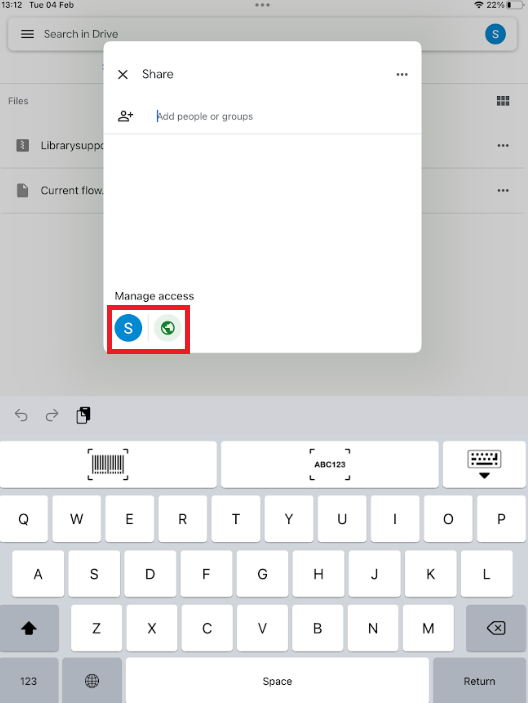
16. Switch the permission to "Anyone with a link":
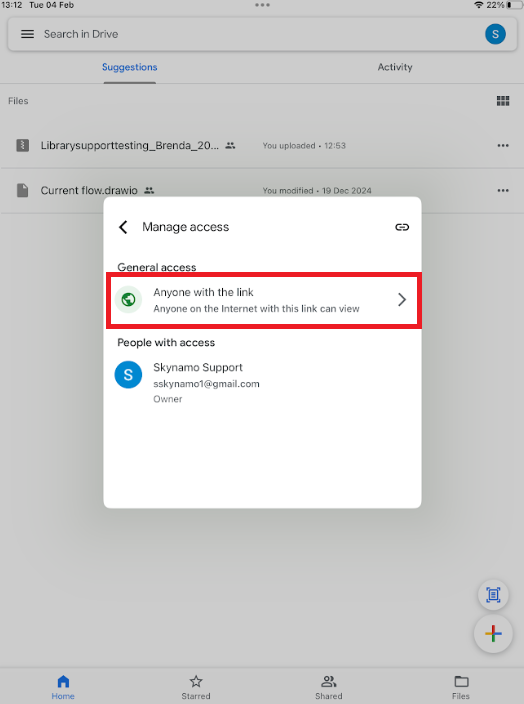
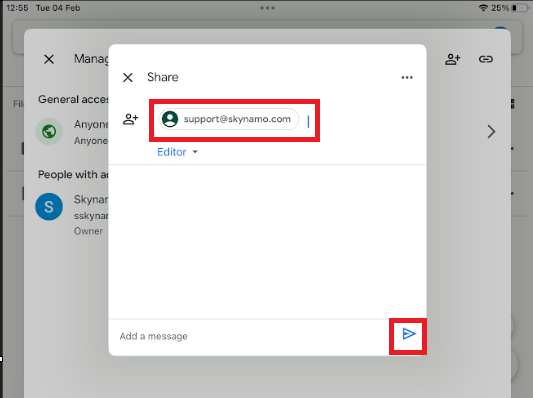
17. Click on the back icon to get back to the Share screen. Then, add "support@skynamo.com" as the email recipient and send the debug through: