
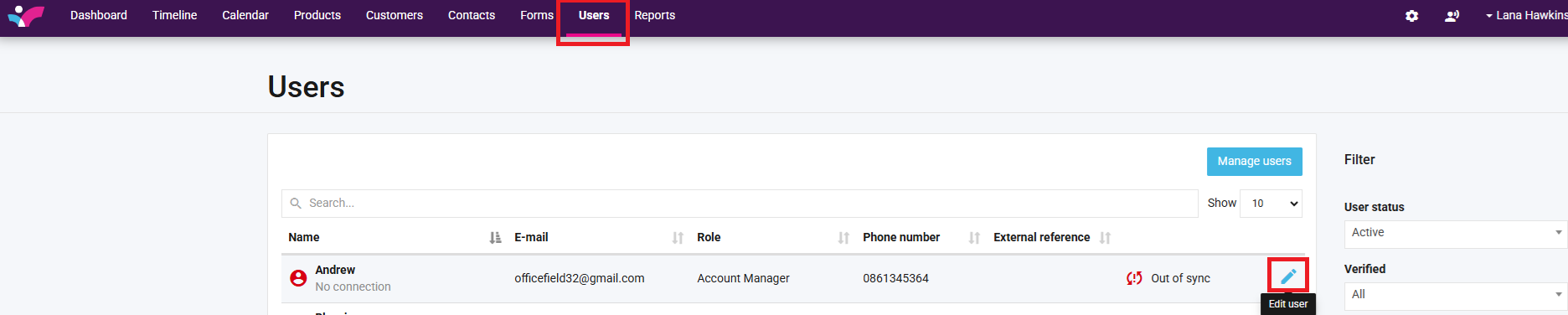
1. Navigate to the Users tab, and select the edit user pencil (to the right of the screen) for the user who’s calendar you wish to share*
*This can only be accessed by yourself and your Skynamo account manager.
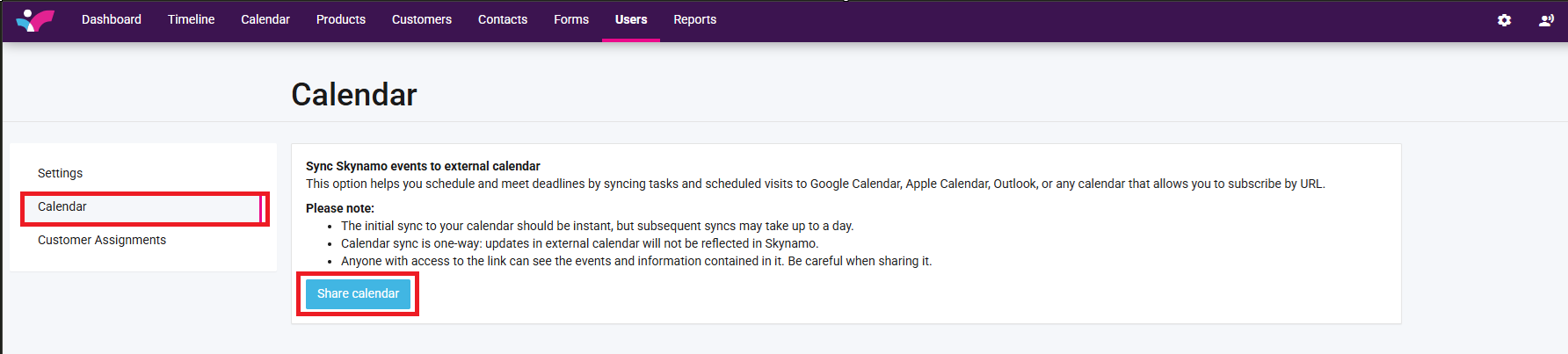
2. Click on Calendar -> Share Calendar:
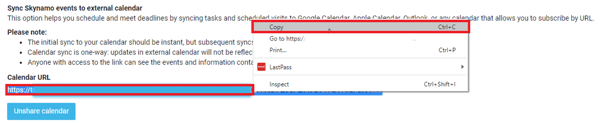
3. After you have selected the Share Calendar button, you will be presented with a Calendar URL. Right click, and copy the entire link, as can be seen below:
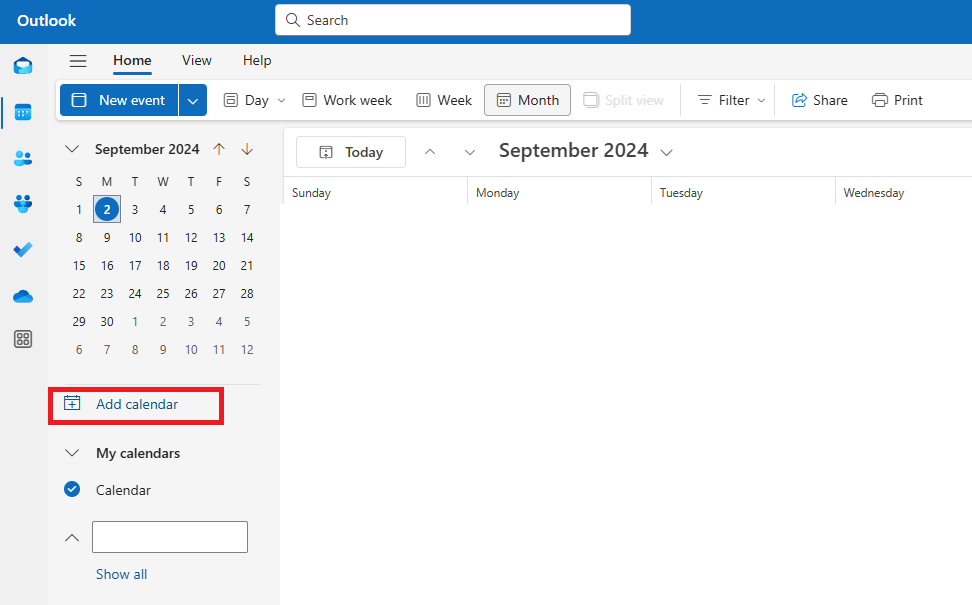
4. The next step is to open your Outlook Calendar.
5. In the right-hand block, click on Add Calendar:
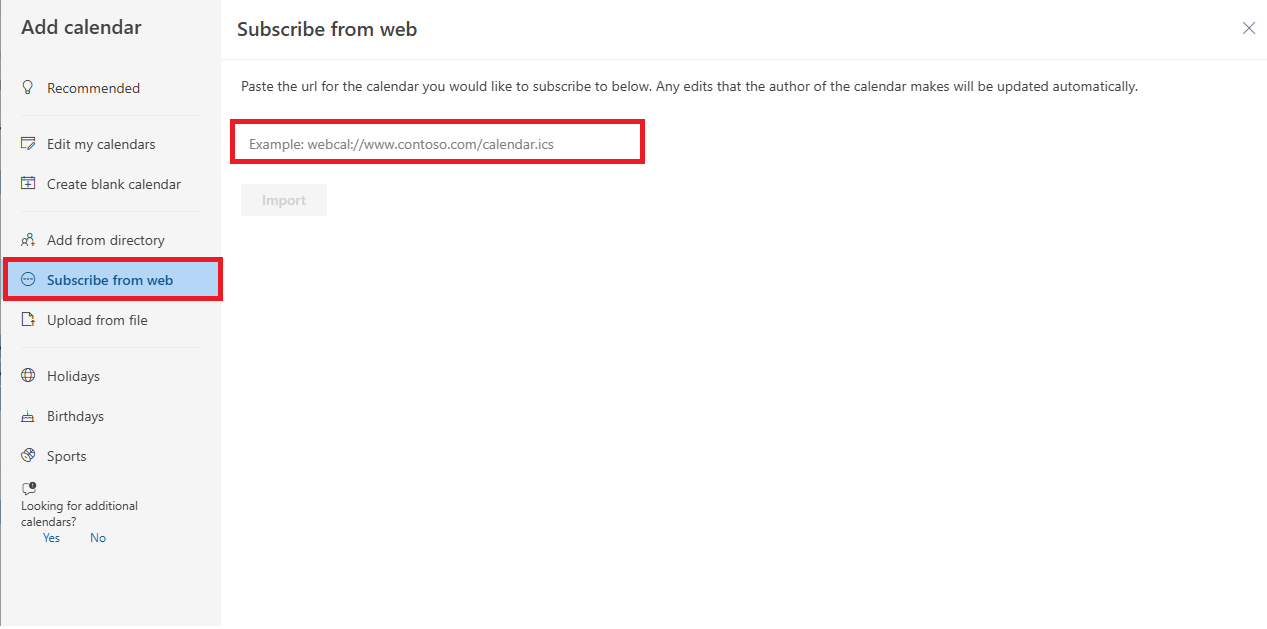
6. Click on Subscribe from web and paste your Calendar URL:
7. Give your new calendar a name (Skynamo) and a color. Choose which Calendar you want to add it to and then, click Import:
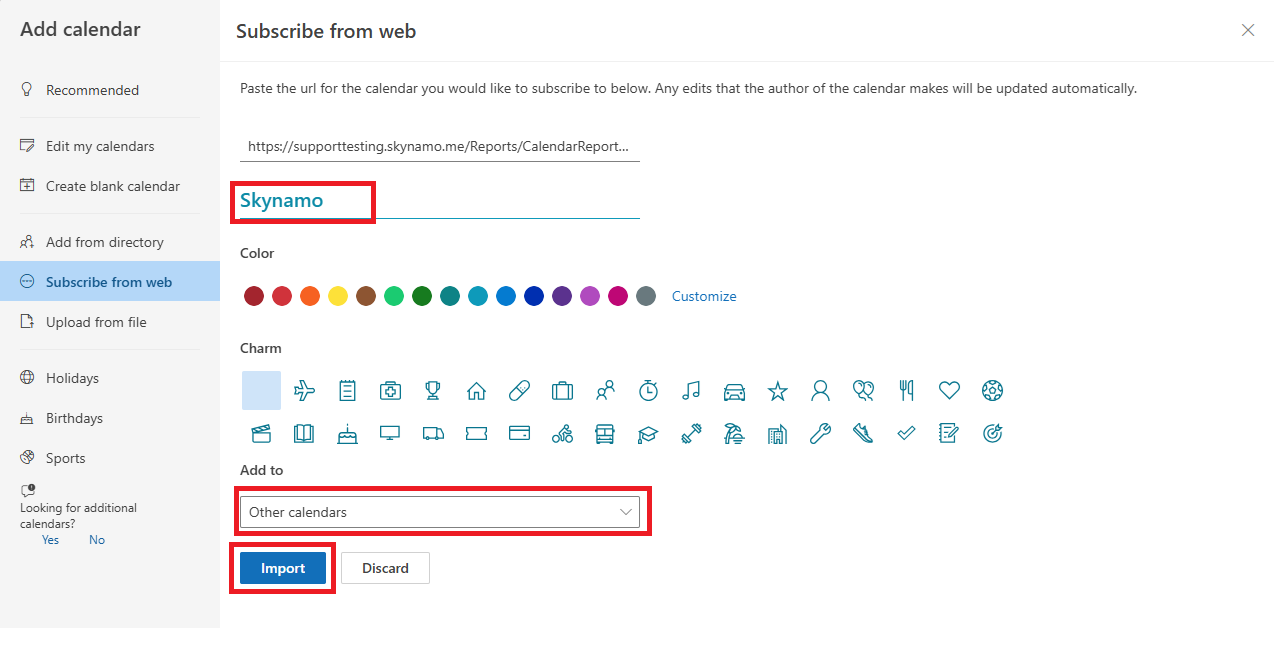
This will link your Skynamo scheduled visits and tasks to your Outlook Calendar.
To unlink the calendars in the future, see this article: https://skynamo.freshdesk.com/a/solutions/articles/201000108799