It is important that before you continue with the restore on mSeller, you ensure that you or the user have completed the download.
For restoring mSeller on the iPad:
Navigate to the mSeller portal, for iPad (http://prod.mseller.co.uk/mseller/Admin/Default.aspx) and log in 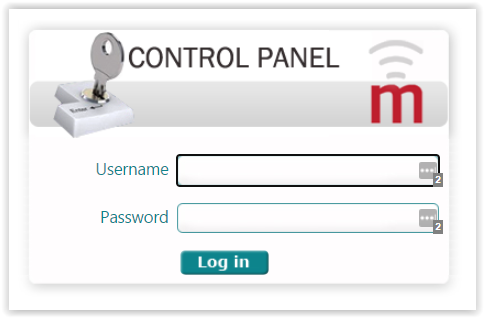
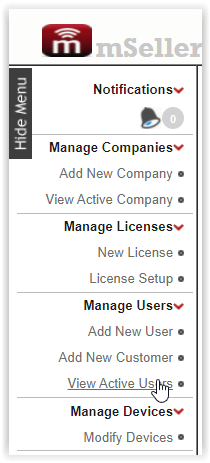
Navigate to 'view active users' in the menu
Select the company you would like to restore the transactions for 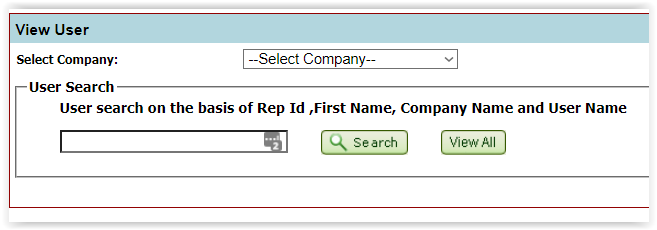
All users linked to the selected company will appear 
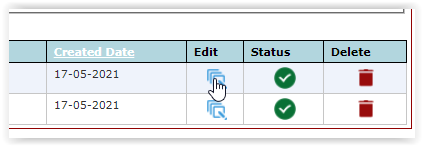
In the bottom right-hand corner, a blue button will appear which says restore transactions 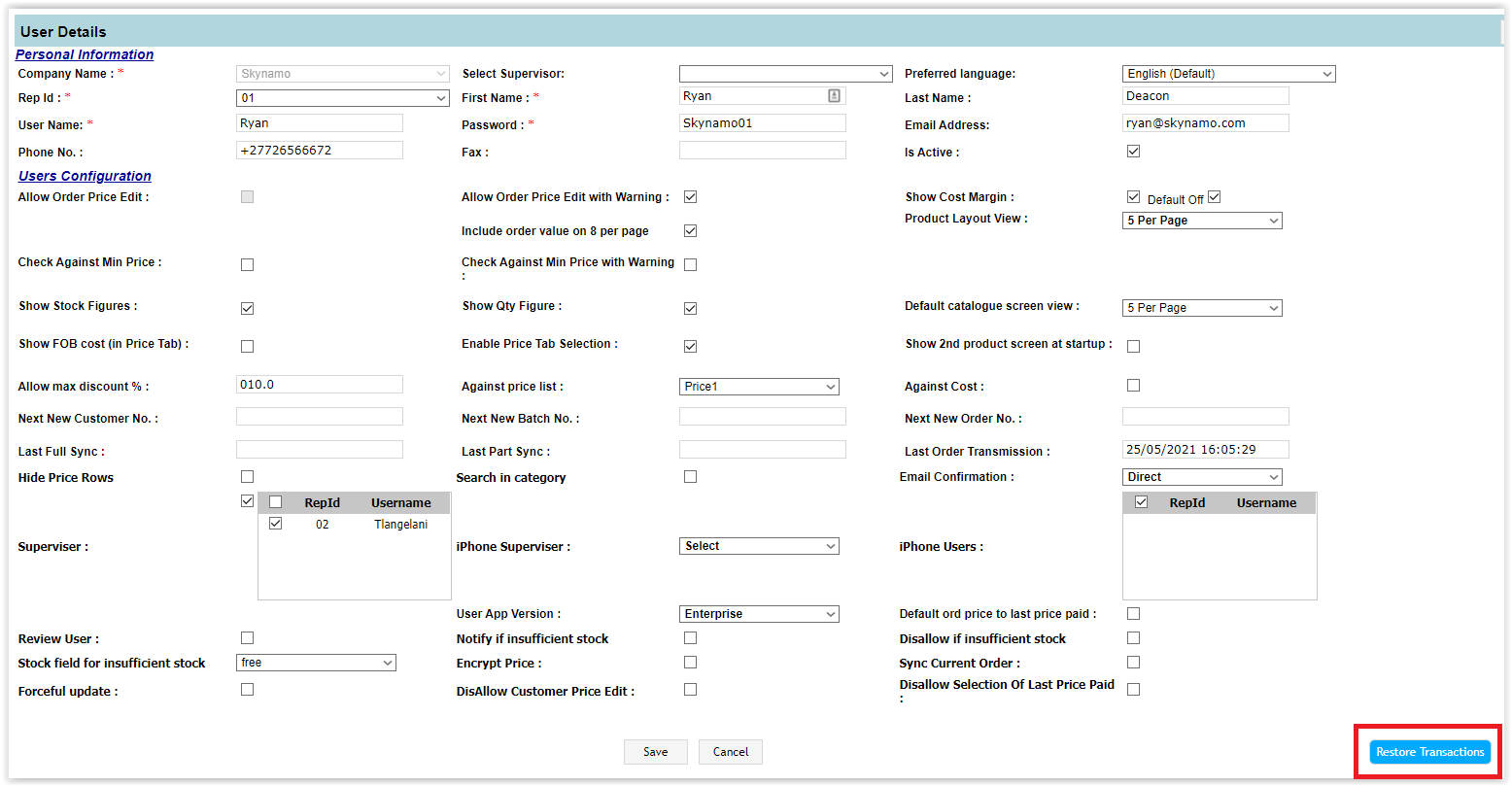 Click on it and a From Date box will appear
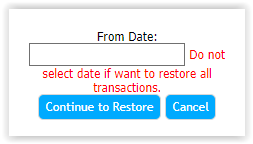
It is advisable to only restore transactions for the last year
Click in the text box for a calendar to appear.
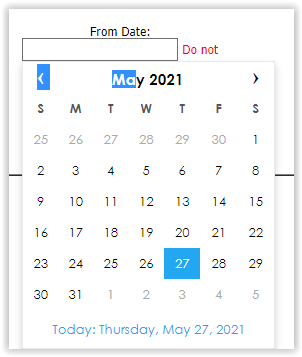
You can select the date using the UI or type it in
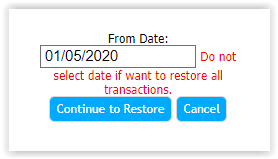
To finish off, click Continue to Restore.
A browser prompt should appear to confirm the action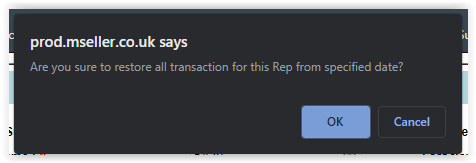
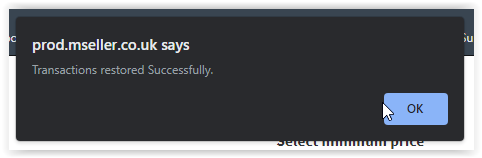
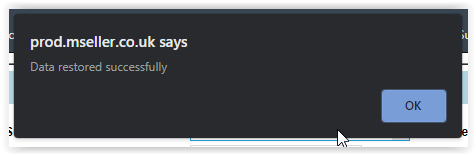
You should then receive a second prompt that will appear to confirm that the transactions have been restored.
Now for mSeller Mini (iPhone)
Log in on the iPhone portal (http://prod.mseller.co.uk/mSelleriPhoneDashboard/Home/Login)
Navigate to manage companies 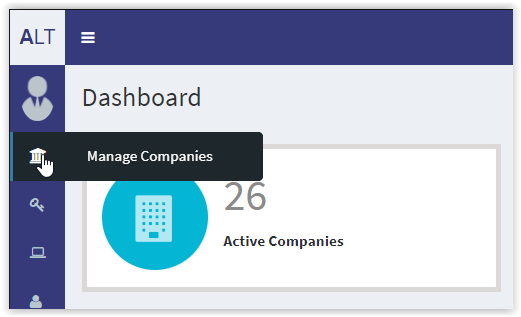
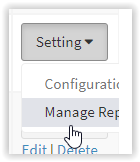
Scroll to the company that you need to do the restore for and click on settings  A drop down will appear where you now need to select manage rep
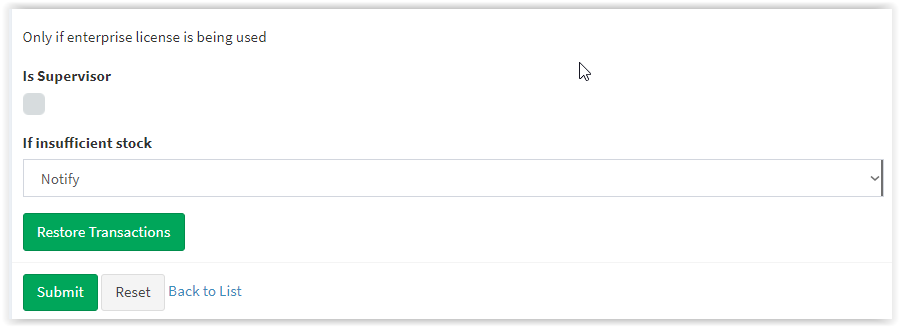
 On the user page, you need to scroll down a bit to find a green button which says Restore Transactions
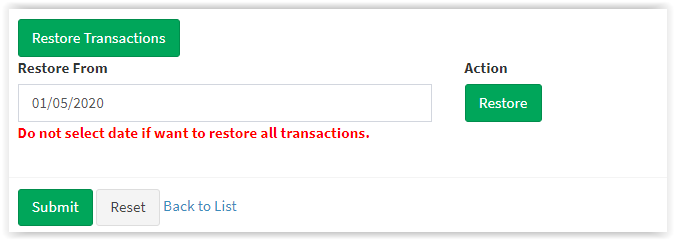
  Click on it and select the date you would like to restore from. You can type it in or use the UI to select it It is advisable to only do it for the last year
  <p A browser prompt should appear to confirm the action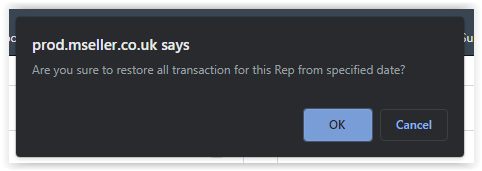
You should then receive a second prompt that will appear to confirm that the transactions have been restored.