
- Check your internet connection:
 VERY IMPORTANT: Once you have performed the above checks, please restart your device to ensure all changes are being implemented.
- Please ensure you have Wi-Fi connection or that your mobile data is turned on.
- Mobile Data (on) / Wi-Fi (on)
- If you are not in a Wi-Fi zone you can switch this off if you know you do have Mobile data
- Check that the Airplane mode is turned “off”
- Airplane Mode (off)
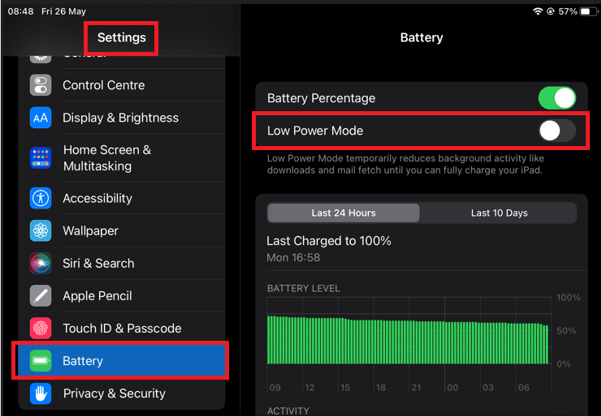
- Please check that battery Low Power Mode is turned off:
Settings > Battery > Switch Low power mode OFF
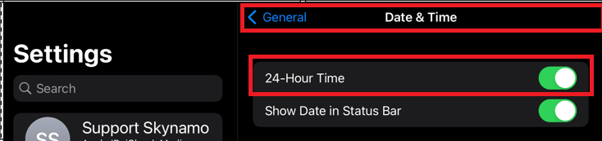
- Ensure your time settings are set to 24-hour time (not 12-hour time):
- Settings> General > Date and Time > 24-hour time
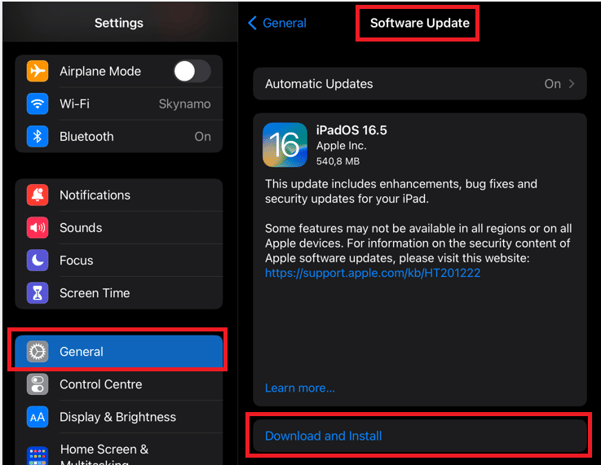
- Ensure that your device's software is up to date:
Settings > General > Software update > Download and install (if an update is available):
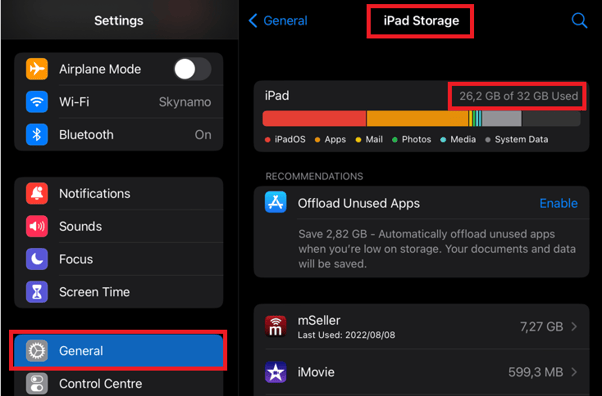
- Check that your device has sufficient storage space. You will need at least 15% of available storage space:
Settings > General > IPad/iPhone storage > Ensure at least 15% of space is Available:
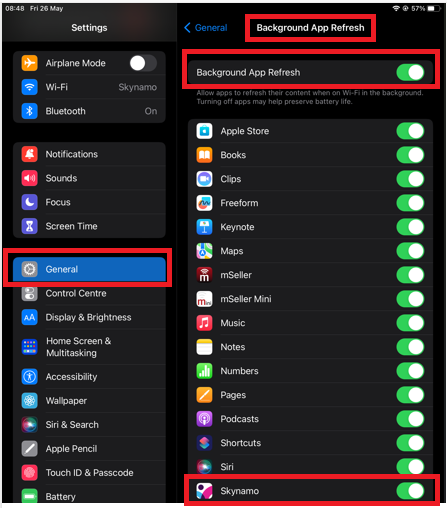
- Ensure background app refresh is switched on:
Settings > General > Background app refresh > Ensure that it is on and that it is switched on for Skynamo:
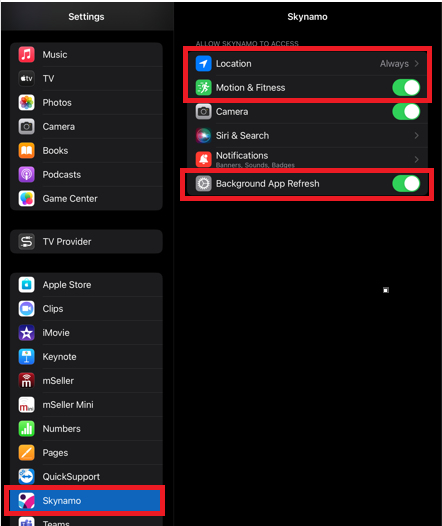
- Ensure Skynamo settings are correct:
-Settings > Skynamo > Location on Always
-Settings > Skynamo > Motion and Fitness ON
-Settings > Skynamo > Background app refresh ON
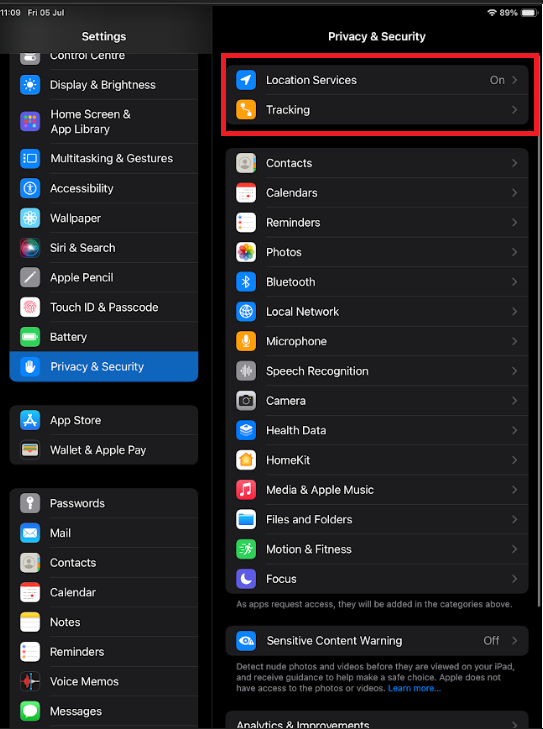
- Ensure that your location settings are correct:
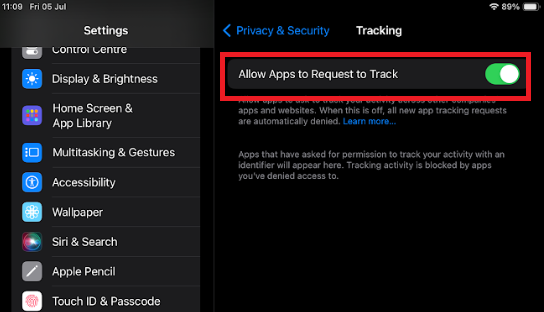
In the left-hand view, go to Privacy and Security and make sure your Location Services has been switched on and that your Tracking has been enabled:
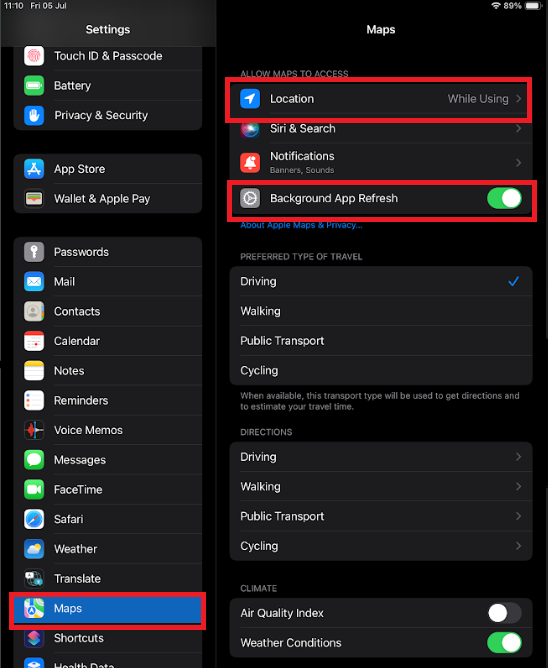
In the left-hand view, click on Maps. Make sure your Location is enabled and that your Background App Refresh is on:
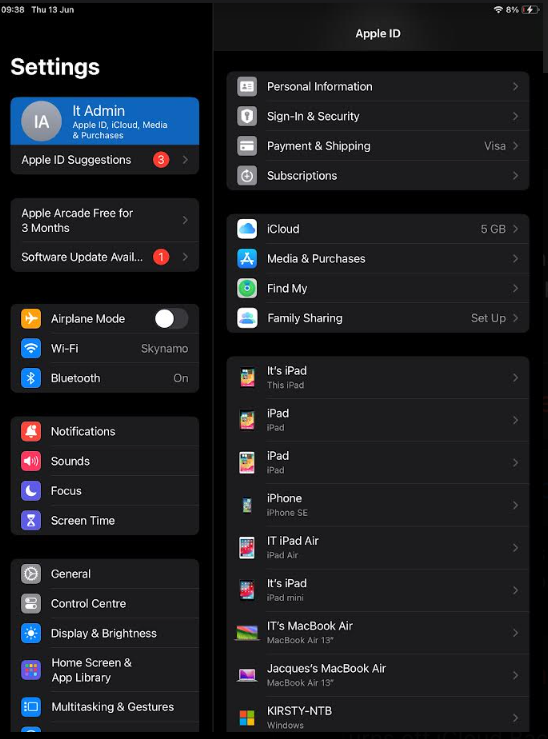
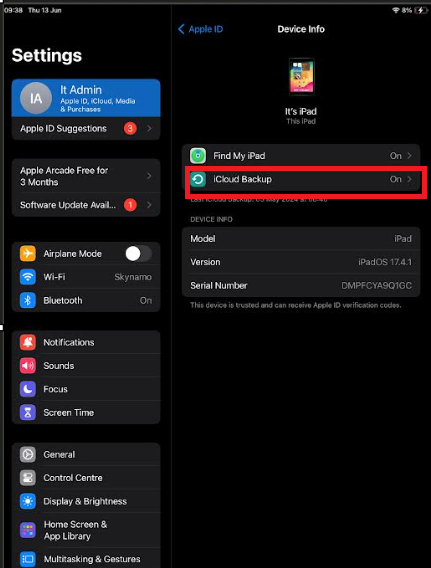
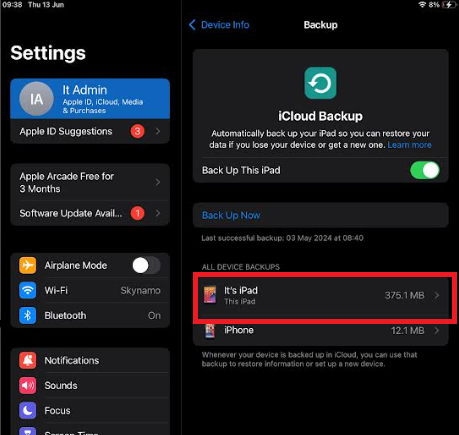
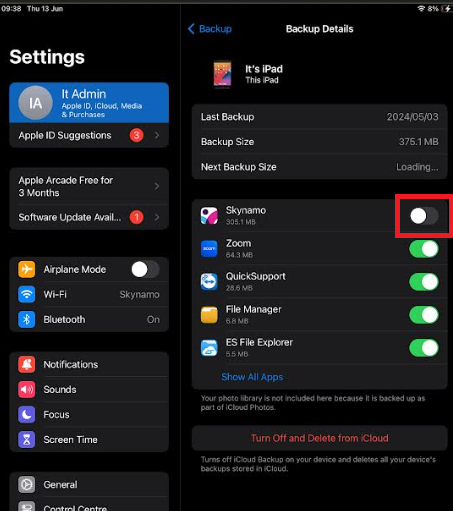
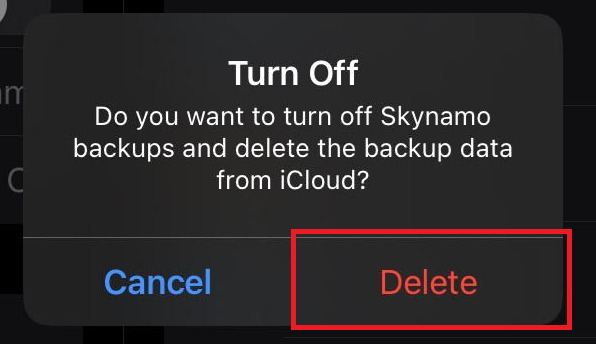
- Switch your iCloud backup off for Skynamo:
-Settings -> Your profile -> This iPad/iPhone -> iCloud backup -> This iPad/iPhone -> Untick Skynamo and Delete. Please make sure that the button next to Skynamo is grey